# Filter
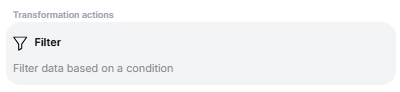
The **Filter** component allows you to control which records move forward in a flow by applying one or more conditions. It is useful when you want to keep only specific data, for example, filtering orders above a certain amount, or selecting customers from a specific region.
### **When to Use the Filter Component?**
Use the Filter when you need to:
* Pass only relevant records to the next step
* Remove data that doesn’t meet your conditions
* Clean, refine, or segment data before processing
### **How to Configure the Filter Component?**
Follow this step-by-step guide to configure the Filter component within a flow:
### **Step 1: Add the Filter Component**
* Inside your flow, click **Add Step**.
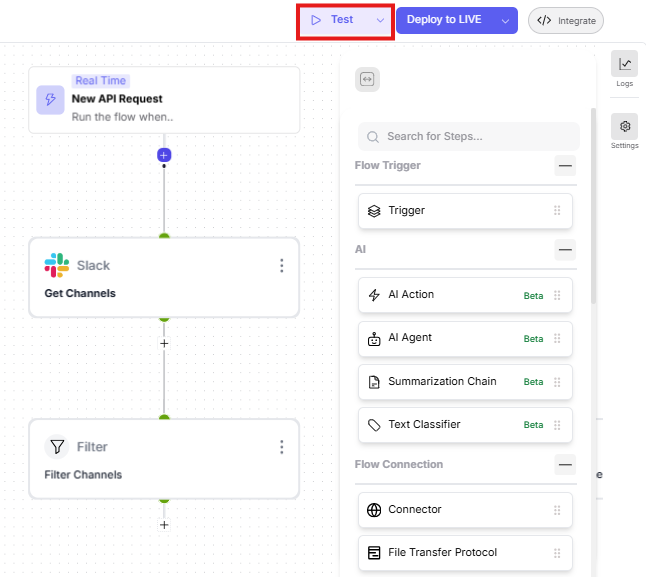
* Select **Flow Transformation → Filter**.
* Place it after the step whose output you want to filter.
### **Step 2: Configure Filter Conditions**
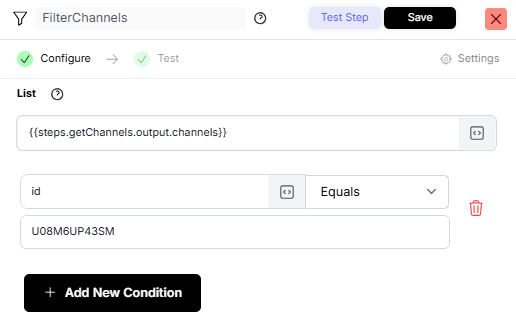
In the **Configure** section, select the list you want to filter, choose the field (Key) to check, set the condition, and provide the value to match.
#### **Example Configuration (Slack – Filter Channels)**
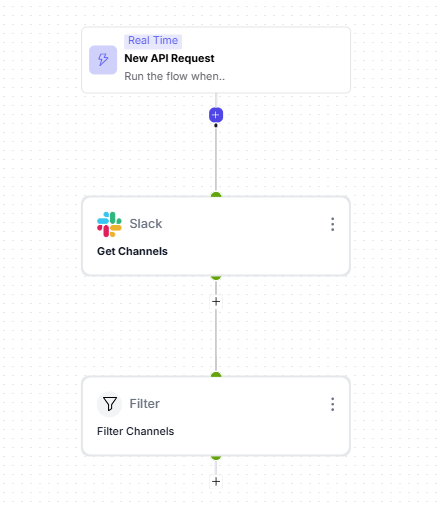
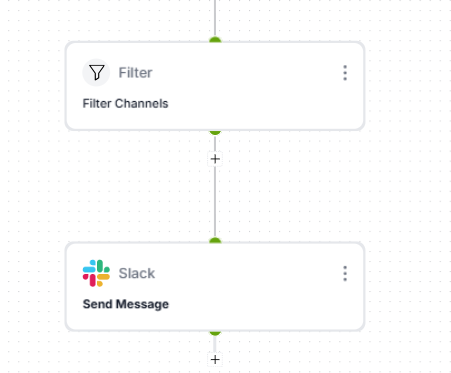
In this example, the flow starts with a **Slack** connector using **Get Channels**, and you apply a filter to keep only the channel matching a specific Channel ID.
* **List:** `{{steps.getChannels.output.channels}}`
* **Key:** `id`
* **Condition:** Equals
* **Value:** ``
This will return only the channel that matches the given Channel ID.
### **Step 3: Add Multiple Conditions (Optional)**
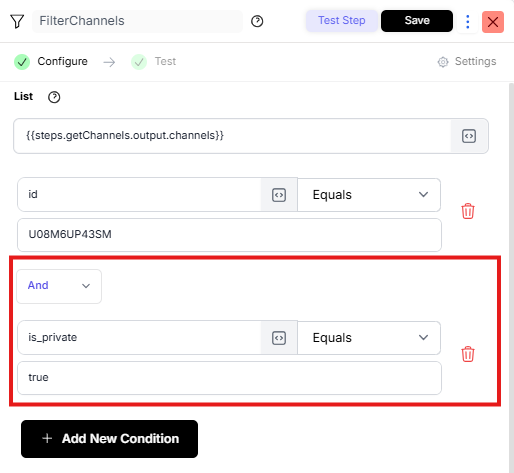
You can add more than one condition using the 'Add New Condition' feature.
> You can also choose whether conditions use **AND** or **OR** logic.
#### **Example**
Filter Slack channels where:
* `is_private = true` **AND**
* `name Contains marketing`
{% hint style="info" %}
Multiple conditions can be applied to refine the filtered results further.
{% endhint %}
### **Step 4: Test the Filter**
Use the **Test** button to preview the filtered output and verify that the correct channel is returned.
### **Step 5: Use Filtered Data in Next Steps**
The filtered result becomes the output of the Filter step and can be used in the following steps, such as sending a Slack message only to that channel.
### ⭐ Best Practices
* Test your filter after configuring it.
* Keep condition values accurate.
* Rename the Filter step for clarity (e.g., *Filter: Target Slack Channel*).