# Flow Settings
When working inside any **Flow** in Fastn, you can adjust its behavior and appearance through the **Settings** option available in the **right-hand sidebar**.
The Settings panel has two main subsections: **Configuration** and **Visuals**.
## 1. Configuration
The **Configuration** section controls how your flow runs and how it handles security, validation, and errors.
### **Flow Type**
You must choose how the flow should execute:
#### **🔹 API (Real-Time Sync API)**
* Executes instantly and returns a real-time response.
* Used for synchronous tasks where the result is needed immediately.
#### **🔹 Workflow (Async Workflow Job)**
* Executes in the background without blocking the request.
* Suitable for asynchronous or heavy jobs.
* When you select **Workflow**, additional options appear:
* **Memory Limit** – Maximum memory allocation (e.g., 2 GB).
* **CPU Limit** – Maximum processing power allocated (e.g., 1 vCPU).
* **Priority** – Determines how quickly the workflow is executed (Low/Medium/High).
* **Timeout (min)** – Maximum duration before the workflow stops.
When Workflow is selected, a new **Trigger** section appears in the **left sidebar**, where you can define how the workflow is initiated:
* **Manual** – Run the workflow manually.
* **Event** – Triggered by an event.
* **Schedule** – Triggered at scheduled intervals.
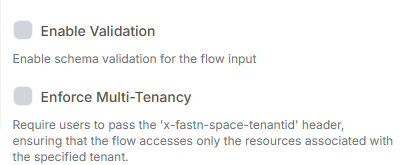
### **Validation & Multi-Tenancy**
* **Enable Validation** – Enforce schema validation for flow input.
* **Enforce Multi-Tenancy** – Require the `x-fastn-space-tenantid` header to ensure the flow only accesses resources for the specified tenant.
### **Authentication**
* **Enable Custom Authentication** – Allow access with an `Authorization` header instead of `x-fastn-api-key`.
* Uses the **fastnCustomAuth** flow for validation.
* You can customize this authentication flow as needed. [Learn More](https://docs.fastn.ai/flows/tutorials/flow-customization-and-operations/how-to-customize-your-authentication-flow)
### **Error Notification**
* **Enable Error Notification** – Forward errors to a notification flow (e.g., sending alerts to Slack).
* You can customize this with the **fastnErrorNotification** flow. [Learn More](https://docs.fastn.ai/flows/tutorials/flow-customization-and-operations/how-to-customize-your-error-notification-flow)
## 2. Visuals
The **Visuals** section customizes the flow editor interface.
* **Enable Side Action Panel** – Displays a quick-access panel for drag-and-drop actions.
* **Enable Flow MiniMap** – Adds a minimap to navigate large or complex flows.
* **Activate Dark Mode** – Switches the editor to dark theme.