# Setting up Connector Authentication
Fastn supports multiple authentication types, including **OAuth, Basic Auth, API Key, Bearer Token,** and **Custom Input.**
## **Setting up Connector Authentication**
When [creating a connector](https://docs.fastn.ai/flows/flow-setup-essentials/connector-types-and-setup#ii.-workspace-connectors) in the Fastn Workspace, you can configure its authentication by enabling ‘Activation’ to reveal all available authentication types, or you can access and edit these settings later by clicking the three dots at the top-right of your connector.
* You will now see all available authentication modes.
{% hint style="info" %}
These options only appear when **Enable Activation** is checked.
{% endhint %}
### **Setting Up Custom Input Authentication**
Use this when a connector requires a simple API key, secret key, or any custom field.
In the **Custom Input** section, you can define fields such as the API key, its description, the input type (password or text), whether it is required, and any expiry-related information.
#### **Example Input Configuration**
```
{
"apiKey": {
"description": "API Key:",
"type": "password",
"required": true
},
"expires_in": {
"type": "number",
"default": 100000,
"hidden": true,
"disabled": true
}
}
```
> When the user clicks **Connect**, Fastn will display the custom input fields, and if the field type is set to password, the value will remain hidden.
### **Setting Up OAuth Authentication**
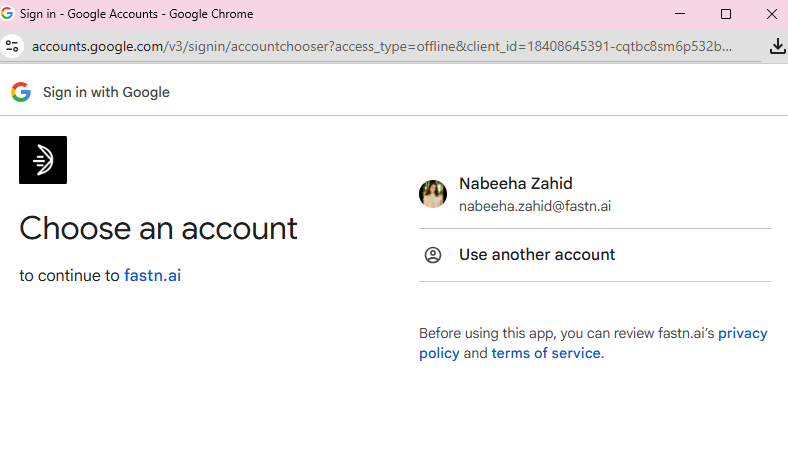
> Use this when the platform supports an OAuth login screen (e.g., Google, Microsoft, Slack).
In the **OAuth** section, you can configure the base URL, client ID, client secret (if required), scope, authorization parameters, required attributes, and the tenant ID.
#### **What does this section handle?**
This part manages the login redirect, the consent popup, and retrieving the authorization code.
{% hint style="info" %}
It does not generate access tokens.
{% endhint %}
### **Setting Up OAuth2 \[Authorization & Token Exchange]**
The **OAuth2 Authorization** section is used to exchange the authorization code for an access token, retrieve refresh tokens, and define how tokens should be renewed when they expire:
* **OAuth Grant Type**: Specifies how Fastn should request the access token.
* **Access Token URL**: URL used to fetch the access token.
* **Refresh Token Grant Type**: Defines how expired tokens should be refreshed.
### **Example OAuth Configurations**
In the same format, you can configure OAuth authentication for other connectors as well. For instance, a Microsoft connector would use a configuration like this:
#### **Microsoft OAuth**
```json
{
"baseUrl": "",
"clientId": "",
"params": {
"scope": "Application.ReadWrite.All AppRoleAssignment.ReadWrite.All ExternalUserProfile.ReadWrite.All DelegatedPermissionGrant.ReadWrite.All Directory.ReadWrite.All User.Read.All openid offline_access",
"response_type": "code",
"prompt": "consent"
},
"requiredAttributes": [],
"tenantId": "default",
"response_type": "code",
"authorization": {
"oauthGrantType": "authCodeGrantWithGrantType",
"accessTokenUrl": "",
"refreshTokenGrantType": "updatingRefreshTokenRequestType",
"requestBodyType": "form",
"refresh_expires_in": "7776000"
}
}
```