> For the complete documentation index, see [llms.txt](https://docs.fastn.ai/llms.txt). Markdown versions of documentation pages are available by appending `.md` to page URLs; this page is available as [Markdown](https://docs.fastn.ai/tutorials/end-user/getting-alerted.md).

# Getting alerted

Be told when an integration breaks instead of finding out from a colleague. Set up your own alerts from inside the widget.

A sync that stops is worse than a sync that fails loudly: nothing errors, nothing lands in your inbox, and the first signal is a colleague asking why a record never arrived. Alerts close that gap, and you can set them up yourself from inside the widget — no fastn account, no request to your provider.

### Where they live

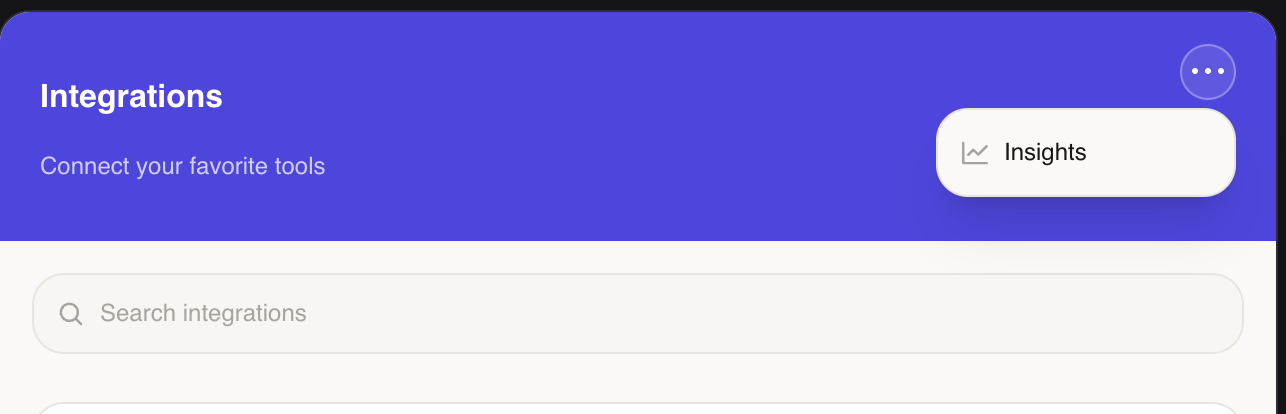
In the widget header, open the **⋯** menu and choose **Insights**.

<figure><img src="https://1255842839-files.gitbook.io/~/files/v0/b/gitbook-x-prod.appspot.com/o/spaces%2F3iSr2Tx8FvvuoLPncziH%2Fuploads%2Fgit-blob-8da46aa08a95ac4ac08896e47c36984fceb7c61b%2Fwidget-menu-insights.png?alt=media" alt="The widget header, titled Integrations with the subtitle Connect your favorite tools, with the three-dot menu open showing a single Insights item"><figcaption><p>The <strong>⋯</strong> menu in the widget header. Insights is the way in.</p></figcaption></figure>

The panel that opens leads with your integration metrics — what is running, what needs attention, recent runs — and the alerts section sits at the bottom, below the workflow list.

{% hint style="info" %}
**No ⋯ menu, or no Insights in it?** Insights lives in that menu and is on by default, but an older widget configuration can leave it hidden. If it is not there, contact your SaaS provider — this is where alerts for your organization are set up.
{% endhint %}

### The one-click start

With nothing set up yet, the section offers the two alerts most teams want:

<figure><img src="https://1255842839-files.gitbook.io/~/files/v0/b/gitbook-x-prod.appspot.com/o/spaces%2F3iSr2Tx8FvvuoLPncziH%2Fuploads%2Fgit-blob-82f9f9f5d57714656ae8f625f7b44c8e0bc03101%2Fwidget-alerts-empty.png?alt=media" alt="The alerts section reading No alerts yet, explaining that one click turns on the two alerts most teams need, with Turn on failure alerts and Custom alert buttons"><figcaption><p><strong>Turn on failure alerts</strong> creates both in one click. The address shown is the one they will be sent to.</p></figcaption></figure>

**Turn on failure alerts** creates an email the moment a run fails, plus a daily reliability check. If you do nothing else on this page, do that. **Custom alert** opens an empty card instead.

Once alerts exist, the one-click option stays available as a **Sync failure notifications** row — *Off - a sync can fail silently. Turn on to get notified the moment a run fails.* — with **+ New alert** beside it for everything else.

### Building a custom alert

A new alert is a card you edit in place. Every field is on it:

<figure><img src="https://1255842839-files.gitbook.io/~/files/v0/b/gitbook-x-prod.appspot.com/o/spaces%2F3iSr2Tx8FvvuoLPncziH%2Fuploads%2Fgit-blob-dcc5a60ce800a25497b55b6cc4b49c97f0501180%2Fwidget-alert-card.png?alt=media" alt="An expanded alert card named Untitled alert, badged Paused and No recipients, with Alert when set to a metric crosses a threshold on Error rate is above 5 percent over 24 hours, a Watch scope of All workflows, Deliver to rows for Email, Slack, Teams and Webhook, and a Firing history reading This alert has not fired yet"><figcaption><p>Defaults on a new alert: Error rate, is above, 5%, over 24 hours, watching all workflows.</p></figcaption></figure>

1. **Name it** for what it means to you — *Orders stopped arriving* beats *Untitled alert*.
2. **Alert when** — either **a run fails (instant)**, which fires on the failure itself, or **a metric crosses a threshold**, the default.
3. **Pick the metric**, the comparison (**is above** / **is below**), a value, and the window: 1 hour, 24 hours, 7 days or 30 days.
4. **Watch** — leave it on **All workflows**, or pick the specific ones this alert applies to.
5. **Deliver to** — at least one channel. An alert with no recipients shows **No recipients** and notifies nobody.
6. **Enable it.** A new alert is created **paused**. Flip the toggle on the card; its tooltip reads *Paused - click to enable*.

{% hint style="danger" %}
**A new alert is paused, and the card saves as you type.** Those two together are the trap: edits persist the moment you make them, with no Save button to confirm and nothing to cancel — but filling in every field still leaves the rule **paused** until you flip the toggle. A card you completed and walked away from is not watching anything.
{% endhint %}

### What you can watch

| Metric                 | Measures                                                | Unit  |
| ---------------------- | ------------------------------------------------------- | ----- |
| **Error rate**         | Percent of runs that failed in the window.              | %     |
| **Success rate**       | Percent that succeeded — alert when it drops.           | %     |
| **Failed runs**        | Number of runs that failed.                             | count |
| **Total runs**         | Number of runs — alert when activity drops off.         | count |
| **Records synced**     | Records successfully synced — alert when a sync stalls. | count |
| **Records failed**     | Records that failed to sync.                            | count |
| **Avg run time**       | Average run duration.                                   | ms    |
| **p95 run time**       | Slowest runs — catches tail latency.                    | ms    |
| **Broken connectors**  | Connections that are not active right now.              | count |
| **Inactive workflows** | Enabled integrations that have not run in the window.   | count |

{% hint style="warning" %}
Watch the unit when you type a threshold. **Error rate is above 5** means five *percent*. Switch to **Failed runs** and the same 5 means five *runs* — a far tighter trigger than it looks. The run-time metrics are in milliseconds, so a five-second threshold is `5000`.
{% endhint %}

### Where it gets delivered

Four channels, each a row with its own **Send via** choice:

| Channel     | Send via                                                  | What you provide                                                                |
| ----------- | --------------------------------------------------------- | ------------------------------------------------------------------------------- |
| **Email**   | fastn's own mail, or one of your connected Gmail accounts | One or more addresses, and an optional subject (default `[Alert] <alert name>`) |
| **Slack**   | An Incoming Webhook URL, or a connected Slack account     | The webhook URL, or a channel picked from your workspace                        |
| **Teams**   | A connected Teams account                                 | The team, then the channel                                                      |
| **Webhook** | —                                                         | An endpoint of your own, to route into whatever you already use                 |

The connection options only list apps **you** have connected and that are currently active. Routing through a connected Slack or Teams account means no webhook URL to generate and no secret to store.

Each card also has a **Send test** button that posts a sample through whatever you have configured. It is disabled until you add a channel — the tooltip says *Add a channel first* — and it is the fastest way to confirm delivery works, rather than waiting for a real failure to find out.

### A starting set

Three alerts cover most of what actually goes wrong:

| Alert                                | Catches                                                                             |
| ------------------------------------ | ----------------------------------------------------------------------------------- |
| **A run fails (instant)**            | Something is erroring right now. This is what **Turn on failure alerts** gives you. |
| **Total runs** below 1 over 24 hours | A sync stopped running entirely — the failure that is otherwise silent.             |
| **Broken connectors** above 0        | An app's authorization expired, before anyone notices missing data.                 |

The second one is the one people skip and later wish they had.

### How soon you hear

**A run fails (instant)** fires off the failure itself, within about a minute. **Threshold** alerts are evaluated every **15 minutes**, so expect notice within that window rather than immediately. Each rule also has a cooldown, so a sustained problem does not become a flood of identical messages.

Every alert keeps its own **Firing history** on the card — on a new one it reads *This alert has not fired yet.* It is the fastest way to tell a real signal from a threshold set too tight: if one has been firing every hour since yesterday, the threshold is wrong, not your integration.

### Who sees what

**Alerts are not shared.** Each organization has its own:

* Alerts you create here watch **your** integrations and notify **your** recipients. Your SaaS provider does not receive them.
* Alerts your provider has set up on their own account do **not** cover you specifically. Them being alerted is not you being alerted.

So if an integration failing matters to you, set up your own rule — do not assume someone upstream is watching on your behalf.

### What you can do next

* [Viewing Sync Status & History](/tutorials/end-user/viewing-sync-status-and-history.md) — what to look at once an alert fires
* [Extending a Pre-Built Integration](/tutorials/end-user/extending-a-prebuilt-integration.md) — fixing the configuration that caused it


---

# Agent Instructions
This documentation is published with GitBook. GitBook is the documentation platform designed so that both humans and AI agents can read, navigate, and reason over technical content effectively. Learn more at gitbook.com.

## Querying This Documentation
If you need additional information that is not directly available in this page, you can query the documentation by asking a question.

Perform an HTTP GET request on the following URL with the `ask` and `goal` query parameters:

```
GET https://docs.fastn.ai/tutorials/end-user/getting-alerted.md?ask=<question>&goal=<user_goal>
```

`ask` is the immediate question: it should be specific, self-contained, and written in natural language.
`goal` is what the user is ultimately trying to achieve, the reason they need the answer. Sharing it helps GitBook give you a better, more relevant answer. A goal is most helpful when it describes the outcome the user wants rather than restating the question. For example, with `ask=how do I create an API token`, a goal like `automate deployments from our CI pipeline` lets GitBook tailor the answer to that use case.

The response will contain a direct answer to the question and relevant excerpts and sources from the documentation.

Use this mechanism when the answer is not explicitly present in the current page, you need clarification or additional context, or you want to retrieve related documentation sections.
