> For the complete documentation index, see [llms.txt](https://docs.fastn.ai/llms.txt). Markdown versions of documentation pages are available by appending `.md` to page URLs; this page is available as [Markdown](https://docs.fastn.ai/fastn/readme/platform-tour.md).

# Platform tour

A screen-by-screen walk through the dashboard, so you know where everything lives.

### The chrome

The top bar carries five things that follow you everywhere.

| Element                  | What it does                                                                                                                                                                     |
| ------------------------ | -------------------------------------------------------------------------------------------------------------------------------------------------------------------------------- |
| **Search** (⌘K / Ctrl+K) | Placeholder *Search connectors, workflows, customers*. Results group under CONNECTORS, WORKFLOWS and CUSTOMERS.                                                                  |
| **Connect to Claude**    | Attaches this workspace to an MCP client so an assistant can call your connectors.                                                                                               |
| **Documentation**        | Opens these docs in a new tab.                                                                                                                                                   |
| **Theme**                | Switches the dashboard between light and dark.                                                                                                                                   |
| **AI credits**           | Reads *AI credits: n of m remaining this month*. Click it for a breakdown by agent and an org total, plus the reset date. Quota resets at the start of each calendar month, UTC. |

The account card at the bottom-left switches organisation and opens your profile.

### Where everything lives

| Group   | Item            | Route                           |
| ------- | --------------- | ------------------------------- |
| —       | Home            | `/`                             |
| BUILD   | Integrations    | `/integrations?tab=connectors`  |
|         | Connectors      | `/integrations?tab=connectors`  |
|         | Unified APIs    | `/integrations?tab=unified`     |
|         | Connections     | `/integrations?tab=connections` |
|         | Workflows       | `/integrations?tab=workflows`   |
|         | Triggers        | `/integrations?tab=triggers`    |
|         | Pending updates | `/integrations/updates`         |
|         | Widgets         | `/widgets`                      |
| OPERATE | Activity        | `/activity/*`                   |
|         | Customers       | `/settings/customers`           |
| MANAGE  | Settings        | `/settings/*`                   |
| —       | Profile         | `/profile`                      |

{% hint style="info" %}
The sidebar parent **Integrations** links to its connectors view (`/integrations?tab=connectors`), and its badge shows the number of connectors in your catalogue. **Agent** is the first item under Integrations, at `/agent`; the **What do you want to build?** prompt on Home opens the same screen. Both are worth knowing before you go looking for a page that seems to have moved.
{% endhint %}

### Home

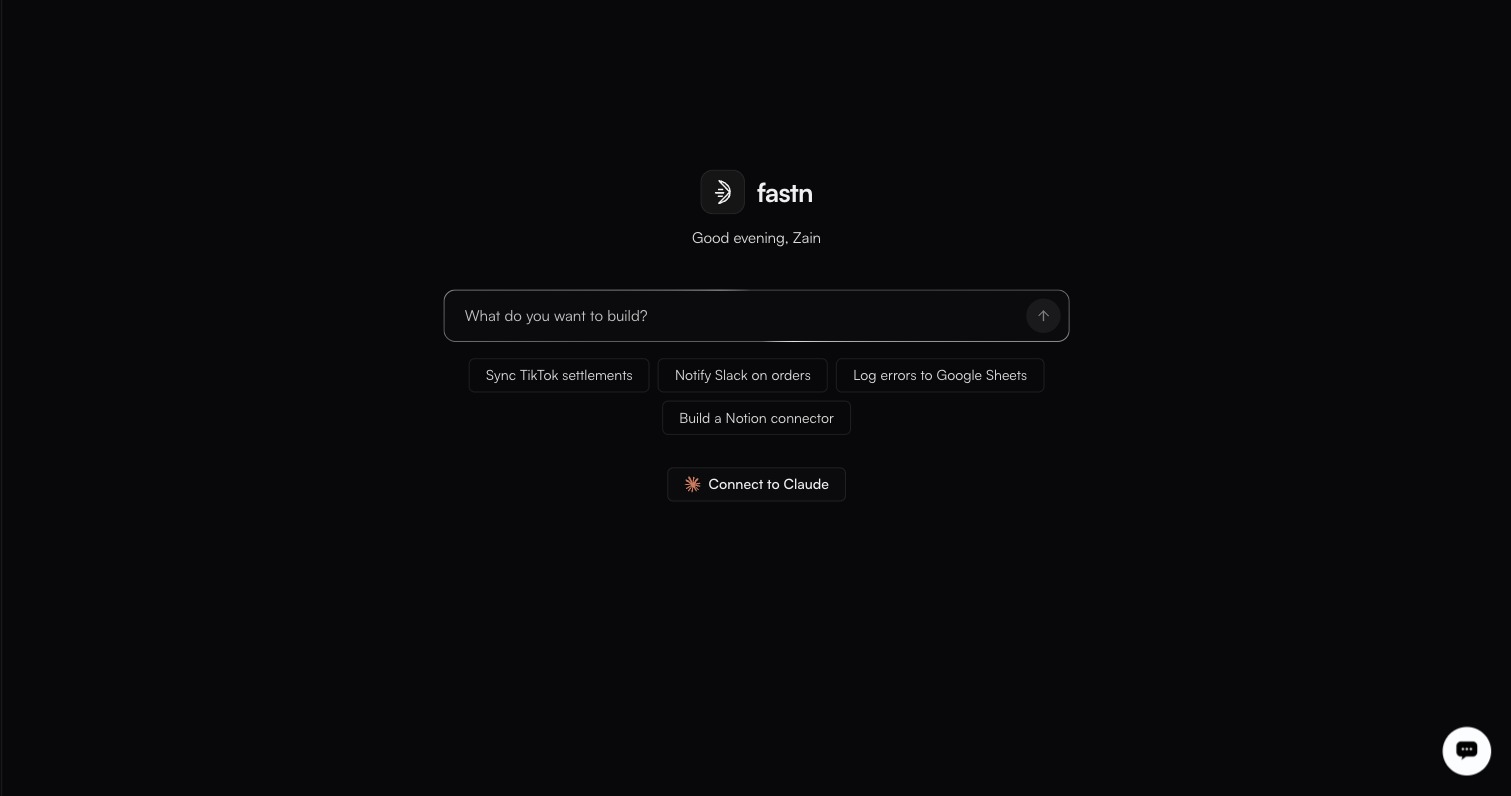
<figure><img src="https://1255842839-files.gitbook.io/~/files/v0/b/gitbook-x-prod.appspot.com/o/spaces%2F3iSr2Tx8FvvuoLPncziH%2Fuploads%2Fgit-blob-adce4367cfc340a9e9665c6023e059cca1568373%2Fhome.jpg?alt=media" alt="The fastn Home screen: a time-of-day greeting, one What do you want to build? prompt box, four suggestion chips, and a Connect to Claude button"><figcaption><p>Nothing else competes for attention here: no counters, no recent activity.</p></figcaption></figure>

One prompt box: *What do you want to build?* Type an integration in plain words and fastn routes you to the right agent. Four suggestion chips sit underneath: *Sync TikTok settlements*, *Notify Slack on orders*, *Log errors to Google Sheets* and *Build a Notion connector*. Each is a starting point you can take as-is or rewrite. **Connect to Claude** sits below them.

### BUILD → Integrations

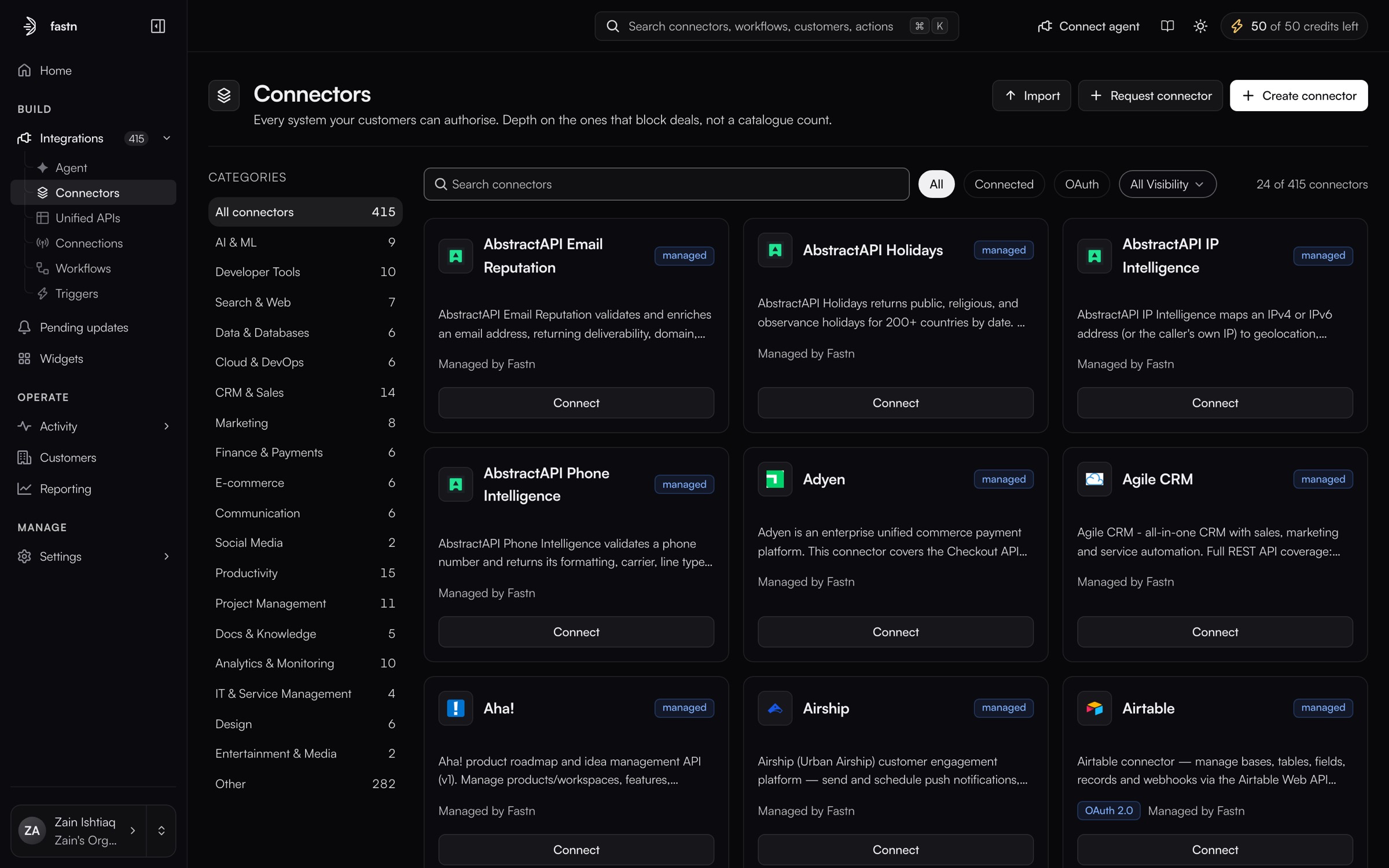
The BUILD group holds two nav items: **Integrations**, which expands into the six pages below, and **Widgets**.

<figure><img src="https://1255842839-files.gitbook.io/~/files/v0/b/gitbook-x-prod.appspot.com/o/spaces%2F3iSr2Tx8FvvuoLPncziH%2Fuploads%2Fgit-blob-6605f7a4f87de376ec8c9c7971bd4e755cd3835a%2Fconnectors-list.jpg?alt=media" alt="Integrations → Connectors showing 24 of 415 catalogue cards (AbstractAPI Email Reputation, AbstractAPI Holidays, Adyen, Agile CRM, Aha!), each badged managed and Managed by Fastn, with Import and Create connector top-right"><figcaption><p>Integrations → Connectors, filtered by connection state, auth type and visibility.</p></figcaption></figure>

| Page                | Purpose                                                                                                       |
| ------------------- | ------------------------------------------------------------------------------------------------------------- |
| **Connectors**      | Every system your customers can authorise. Create, import, connect.                                           |
| **Unified APIs**    | One canonical endpoint per business entity, backed by whichever providers you connect.                        |
| **Connections**     | Authenticated links between a customer and a system, with auth type and status.                               |
| **Workflows**       | The JavaScript that runs, with editor, tests, executions and API details.                                     |
| **Triggers**        | Webhooks, schedules and app events that start workflows.                                                      |
| **Pending updates** | Vendor changes to your integrations, and the fixes proposed for them. Nothing is applied until you accept it. |

**Connect to Claude**, in the top bar and again on Home, exposes all of this to an AI client. See [MCP gateway](/build/mcp-gateway.md).

### BUILD → Widgets

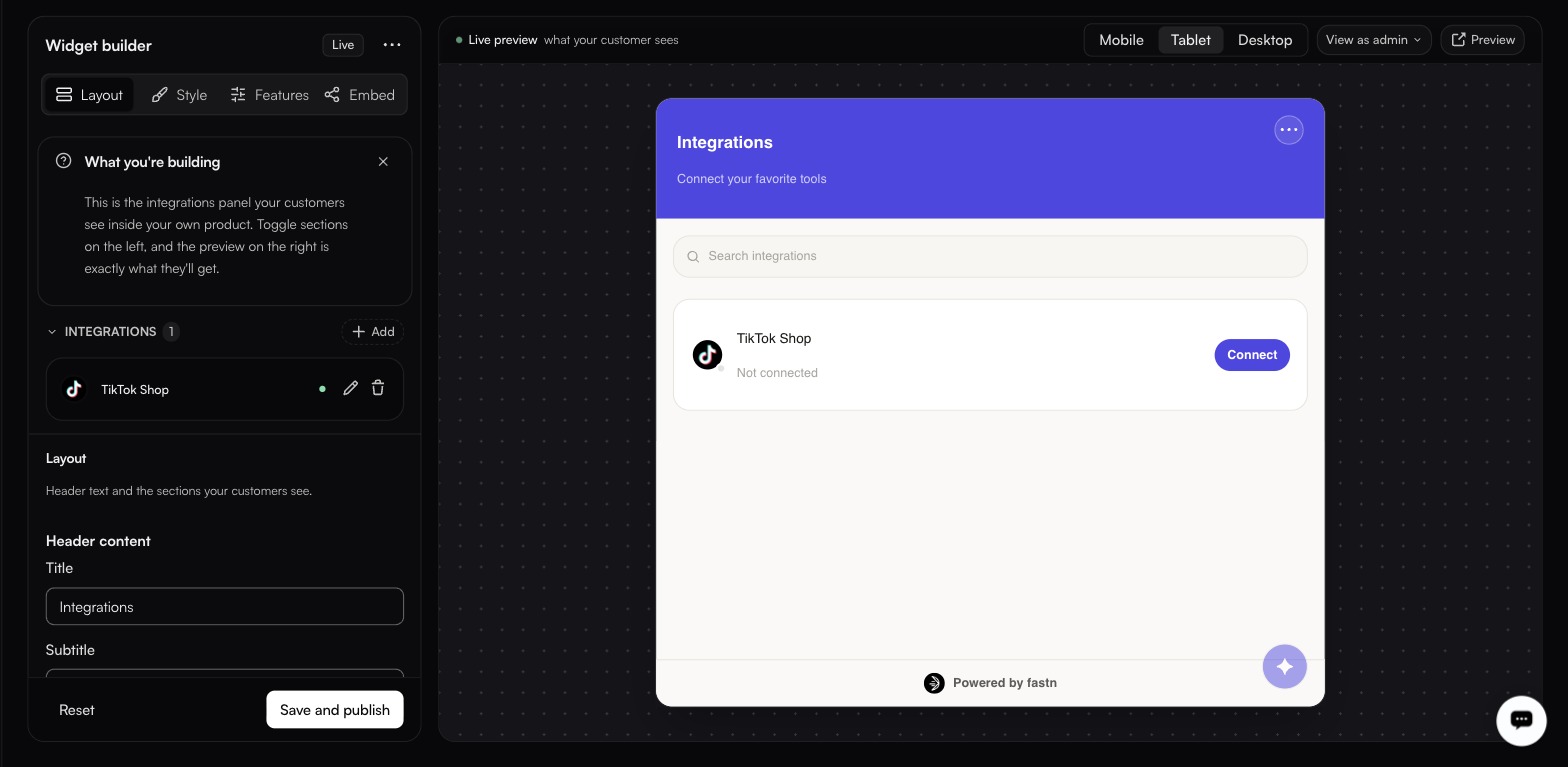
<figure><img src="https://1255842839-files.gitbook.io/~/files/v0/b/gitbook-x-prod.appspot.com/o/spaces%2F3iSr2Tx8FvvuoLPncziH%2Fuploads%2Fgit-blob-26639cc049eb2d47e1dccdb6d87f51c32460f37b%2Fwidget-builder-layout.jpg?alt=media" alt="Widget builder, Layout tab, badged Live, beside a Tablet-width preview: purple Integrations header, Connect your favorite tools, a search box, and TikTok Shop marked Not connected"><figcaption><p>Left: what you configure. Right: exactly what your customer sees.</p></figcaption></figure>

The widget builder has four tabs (Layout, Style, Features, Embed) and a live preview that renders at mobile, tablet and desktop widths. A sticky footer carries **Reset** and **Save and publish**; a **Live** badge appears once the widget is saved, and **Widget actions** offers **Reset to defaults**.

### OPERATE → Activity

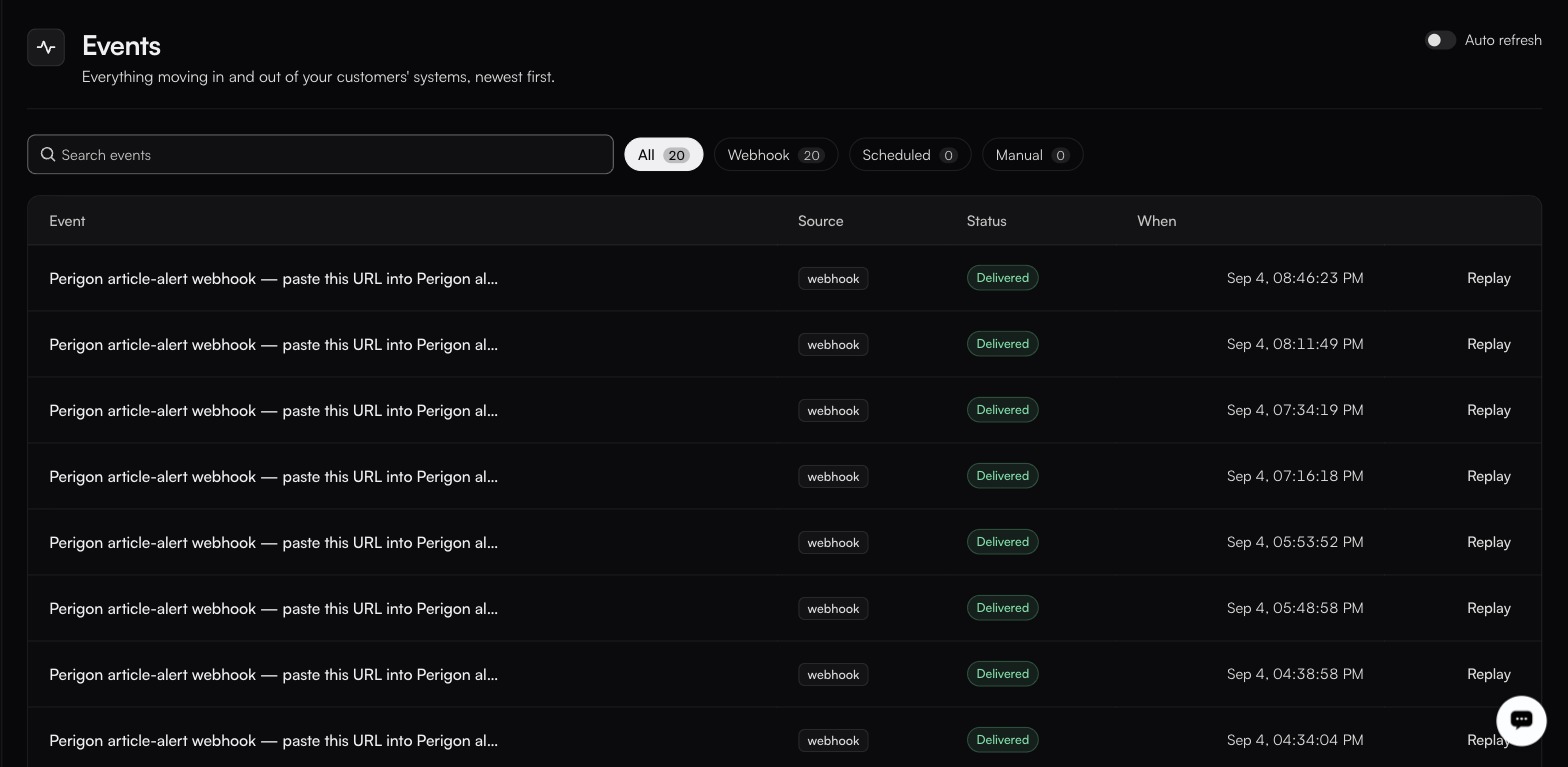
<figure><img src="https://1255842839-files.gitbook.io/~/files/v0/b/gitbook-x-prod.appspot.com/o/spaces%2F3iSr2Tx8FvvuoLPncziH%2Fuploads%2Fgit-blob-46c61be7c6bd2a14d0789569ffef2404a2c1d81a%2Factivity-events.jpg?alt=media" alt="Activity → Events listing repeated Perigon article-alert webhook rows, each tagged webhook, Delivered, timestamped Sep 4, with a Replay link, under chips All 20, Webhook 20, Scheduled 0, Manual 0"><figcaption><p>Activity → Events, the inbound and outbound record.</p></figcaption></figure>

| Page             | Answers                                                         |
| ---------------- | --------------------------------------------------------------- |
| **Events**       | What arrived, from where, and was it delivered?                 |
| **Traces**       | Which connected systems did a run call, and how slow were they? |
| **Alerts**       | What should page us, and where?                                 |
| **Executions**   | Which runs happened, and how did they end?                      |
| **Sync reports** | What actually changed, record by record?                        |

### OPERATE → Customers

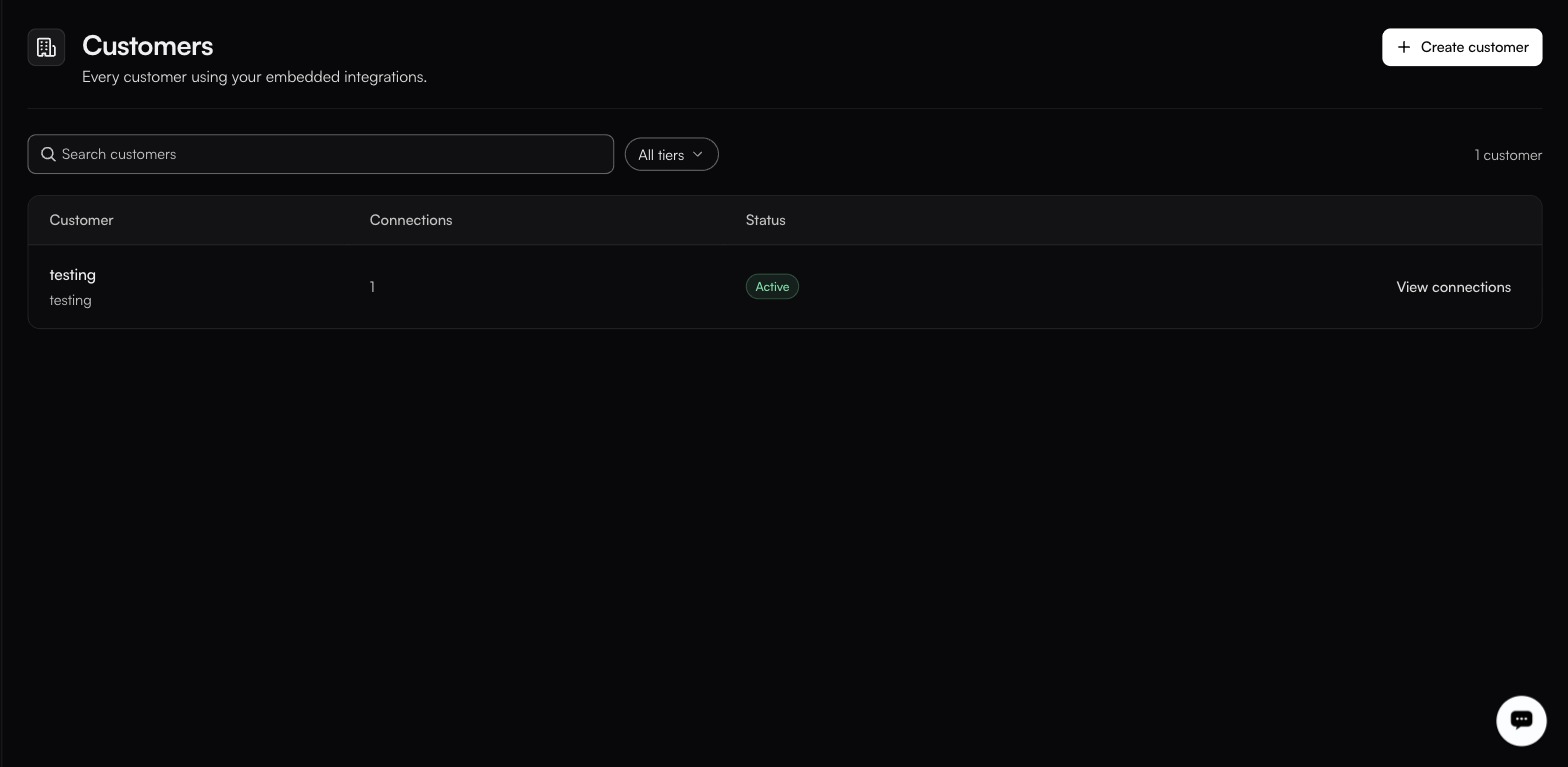
<figure><img src="https://1255842839-files.gitbook.io/~/files/v0/b/gitbook-x-prod.appspot.com/o/spaces%2F3iSr2Tx8FvvuoLPncziH%2Fuploads%2Fgit-blob-c8a7c3b1125e27c65e358e9102f45cac2cac6689%2Fcustomers.jpg?alt=media" alt="The Customers list holding a single row (testing, identifier testing, 1 connection, Active) beside an All tiers filter, with Create customer top-right and View connections on the row"><figcaption><p>Every customer using your embedded integrations; this workspace has only a test one.</p></figcaption></figure>

**Customers** appears as its own item in the OPERATE group, a sibling of Activity rather than a page inside it, though its route is `/settings/customers`, not `/customers`. It lists everyone using your embedded integrations, with columns *Customer*, *Connections* and *Status* (`Active` or `Pending admin activation`), plus **Create customer**, a search box, and **View connections** on each row. Documented with [Operate](/operate/customers.md).

### MANAGE → Settings

**The Settings navigation is scoped to your role.** What you see there depends on who you are in this organisation:

| Role              | Settings contains                                                                                                      |
| ----------------- | ---------------------------------------------------------------------------------------------------------------------- |
| **Owner / Admin** | People, General, API keys, Secrets, Environments, Configs, Database, SaaS Connectors, Billing, Roles, Audit log, Trash |
| **Developer**     | API keys, Secrets, Environments, Configs, Database, Trash                                                              |

Trash is in the sidebar for Owners, Admins and Developers alike, at `/settings/trash`. Two capabilities are gated by role rather than by permission: using the AI assistant, and reading the audit log. Each screen has its own page under [Settings](/manage/manage.md).

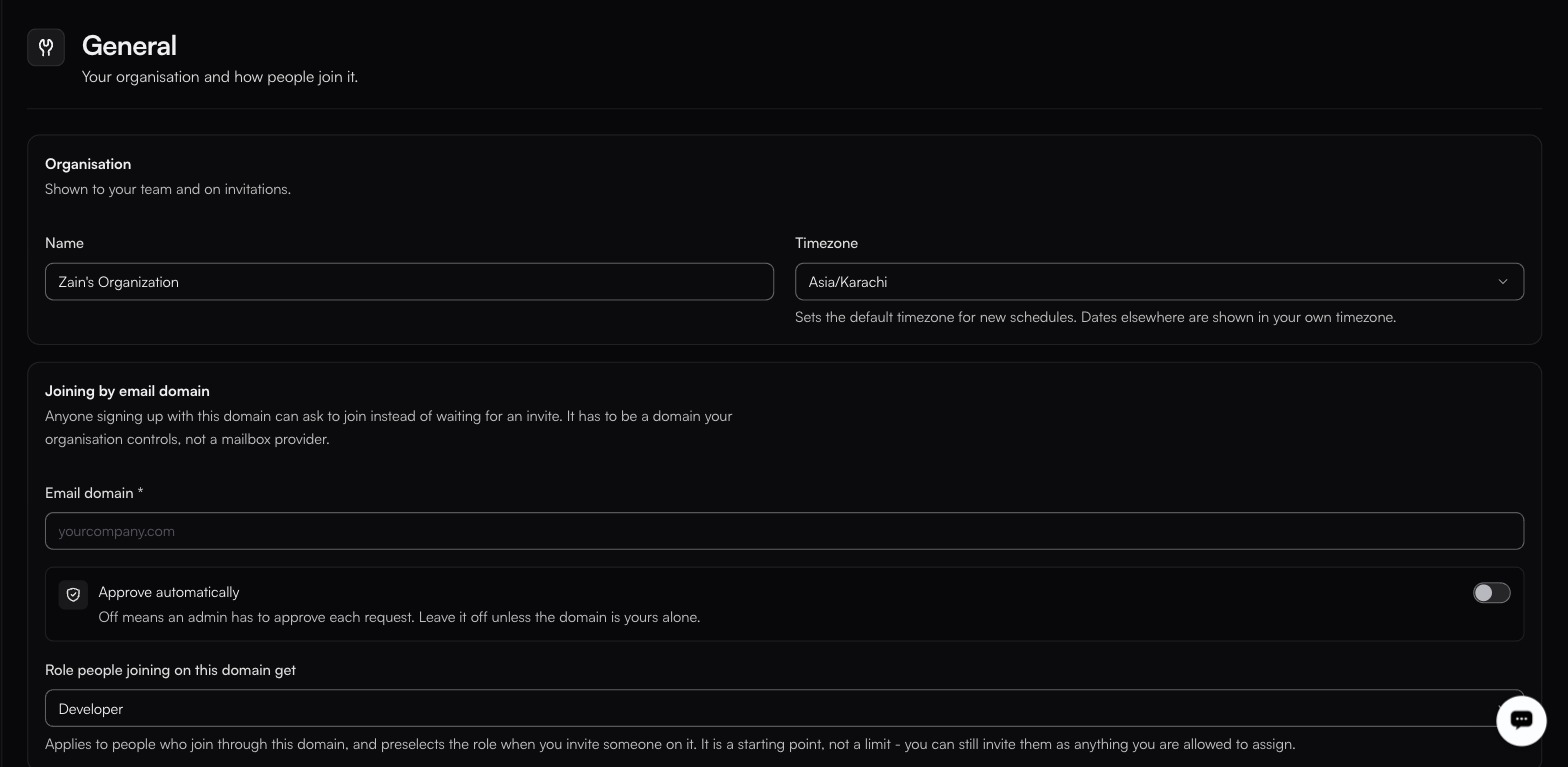
<figure><img src="https://1255842839-files.gitbook.io/~/files/v0/b/gitbook-x-prod.appspot.com/o/spaces%2F3iSr2Tx8FvvuoLPncziH%2Fuploads%2Fgit-blob-5b27db0b25aaf0222ea6d77599945d6533363bac%2Fsettings-general.jpg?alt=media" alt="Settings → General: an Organisation block holding the organisation Name and Timezone Asia/Karachi, then Joining by email domain with an empty domain field and Approve automatically off"><figcaption><p>General is where Settings opens for an Owner: organisation identity first, joining rules second.</p></figcaption></figure>

### The account card

Bottom-left. It shows who you are and which organisation you are in. The chevron opens [your profile](/manage/profile.md); the up-down arrows open **SWITCH ORGANISATION**, which lists every organisation you belong to with your role in each: Platform Admin, Owner, Admin, Developer or Operator. Everything else in the dashboard is scoped to whichever organisation is selected, so check this first when something you expected to find is missing.


---

# Agent Instructions
This documentation is published with GitBook. GitBook is the documentation platform designed so that both humans and AI agents can read, navigate, and reason over technical content effectively. Learn more at gitbook.com.

## Querying This Documentation
If you need additional information that is not directly available in this page, you can query the documentation dynamically by asking a question.

Perform an HTTP GET request on the current page URL with the `ask` query parameter, and the optional `goal` query parameter:

```
GET https://docs.fastn.ai/fastn/readme/platform-tour.md?ask=<question>&goal=<endgoal>
```

`ask` is the immediate question: it should be specific, self-contained, and written in natural language.
`goal` is optional and describes the broader end goal you are ultimately trying to accomplish on behalf of the user. GitBook uses it to tailor the answer towards what is most useful for that goal.

The response will contain a direct answer to the question and relevant excerpts and sources from the documentation.

Use this mechanism when the answer is not explicitly present in the current page, you need clarification or additional context, or you want to retrieve related documentation sections.