Edit Integration
Every field in the Edit Integration dialog: connectors, workflows, callbacks and per-connector overrides.
Widgets → INTEGRATIONS → pencil on a row
Each row in the INTEGRATIONS panel carries a status dot, a pencil and a trash. The pencil opens Edit Integration, and this dialog is where most of an integration's behaviour is configured. The trash removes the integration from the widget.

Identity and template
NAME
What the customer sees on the card
CONFIGURATION TEMPLATE
Edit field mappings & sync rules, described in the dialog as the shared template every setup clones from. Each customer's setup starts as a copy of this, so editing the template changes the starting point for new setups, not the ones already created
Status
Widget enabled is a switch: globally visible to end-users. Turning it off hides the widget without affecting existing bindings. Customers who already activated it keep running; new ones simply do not see it.
Activation mode
How many times one end-user may connect this integration.
Single activation
Each end-user has one connected instance
Multi-connection
End-users can create multiple bindings, each with its own set of connector connections
Pick Multi-connection when one customer legitimately has several accounts on the same system, such as two TikTok Shop storefronts.
Customer visibility
All customers
Every customer under this account sees this widget
Specific customers
Only the customers you pick below can see it
Specific customers is how you pilot an integration with a few accounts before opening it to everyone.
Connectors
The systems this integration connects. Search the catalogue and add them; each selected connector becomes a chip carrying a gear and an X.
Per-connector settings

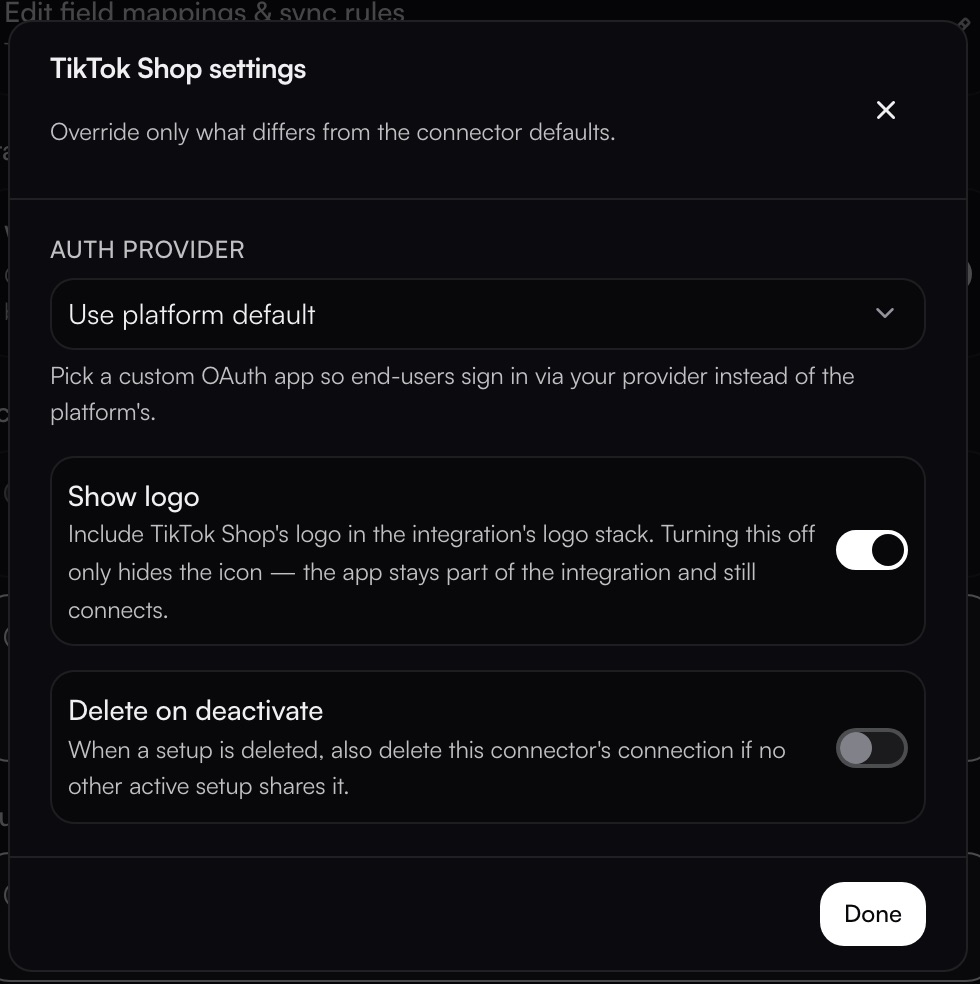
The gear on a connector chip opens <Connector> settings, which override only what differs from the connector defaults.
AUTH PROVIDER
Use platform default, or pick a custom OAuth app so end-users sign in via your provider instead of the platform's. This is what puts your own brand on the consent screen
Show logo
Includes that connector's logo in the integration's logo stack. Turning it off only hides the icon. The app stays part of the integration and still connects
Delete on deactivate
When a setup is deleted, also delete this connector's connection, but only if no other active setup shares it
Reset overrides returns the connector to the defaults; Done closes the panel.
Delete on deactivate is destructive. Deleting a connection is permanent. Any workflow, trigger or other integration using that connector for that customer stops working until the customer reconnects. Leave it off if connections are shared across more than one integration.

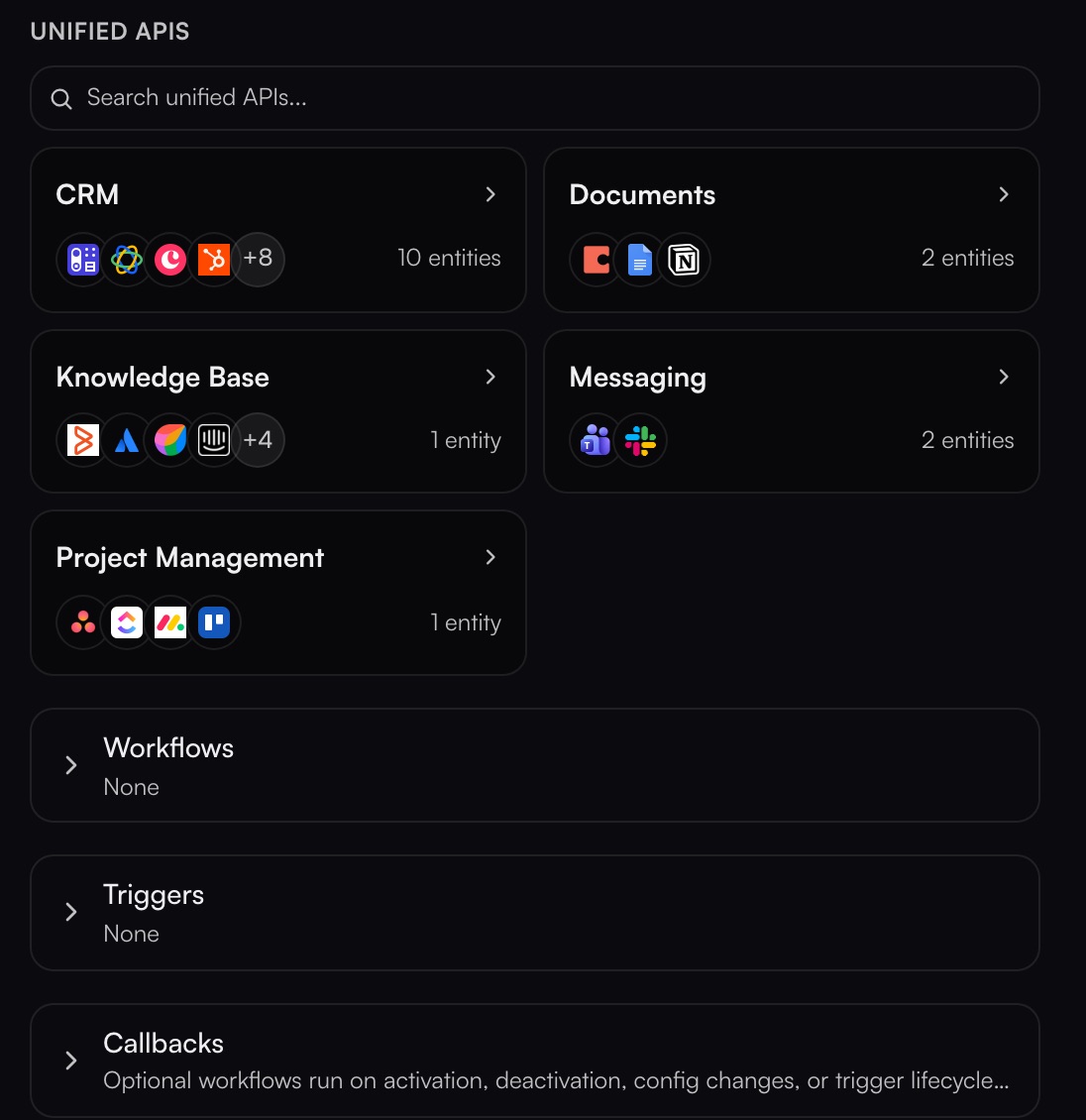
Unified APIs
Instead of naming connectors one at a time, attach a unified category and the integration serves whichever provider each customer connected. The picker shows each category with how many entities it carries, for example CRM with 10 entities, Documents with 2, Knowledge Base with 1, Messaging with 2, and Project Management. See Unified APIs.
Workflows
Selected workflows auto-bind to every customer with an active connection when you Save & Publish.
This is the binding people look for: rather than wiring a workflow per customer, you pick it once here and every customer who has connected gets it. The panel shows how many are bound, a chip per selection, and a search listing each workflow with its slug, such as fulfilment-dry-run-cin7-to-tiktok-read-only or cin7_connection_test.
Binding happens on Save & Publish, not when you tick the box.
Triggers
Triggers the customer gets with this integration. Each has a gear for its template defaults and for whether the end user may edit it. A fresh integration reads None.

Callbacks
Optional workflows run on activation, deactivation, config changes, or trigger lifecycle events.
A callback runs one of your workflows when a customer does something in the widget. Each row has a toggle and a gear to choose the workflow; an unset row reads Not set, and a set one names the workflow and how it runs, for example TikTok Shop Connection Test · background.
Customer activates
A customer turns the integration on
Customer deactivates
A customer turns it off
Customer changes settings
A customer edits its configuration
Customer creates a trigger
A customer adds a trigger
Customer updates a trigger
A customer edits one
Customer deletes a trigger
A customer removes one
Customer activates is the one most teams set first: it runs a connection test the moment a customer connects, so a broken credential surfaces immediately rather than on the first real sync.
Saving
Save & Publish applies everything, including binding the selected workflows. Cancel discards the dialog.
Last updated
Was this helpful?