> For the complete documentation index, see [llms.txt](https://docs.fastn.ai/llms.txt). Markdown versions of documentation pages are available by appending `.md` to page URLs; this page is available as [Markdown](https://docs.fastn.ai/embed/api-keys.md).
# API keys and MCP
Programmatic access to your workspace.
**Embed → API keys and MCP → API keys** · `/access`
| Column | Notes |
| ------------- | -------------------------------------------------- |
| **Name** | What you called it. |
| **Key** | Prefix and last four characters, with a copy icon. |
| **Mode** | Live or Test. |
| **Scope** | The permissions it carries. |
| **Last used** | Timestamp, or Never. |
**Search keys** narrows the list, and the filters are **All** / **Live** / **Test**.
**Rotate** issues a new secret for the same key. The **…** menu holds **Edit**, **Identity verification** and **Revoke**; **Identity verification** is hidden on a key pinned to exactly one customer, because that key already is the customer. Revoking is how an active key ends. Once a key is revoked or expired, its row offers **Delete** (a trash icon) instead, which removes it permanently.
### Creating a key
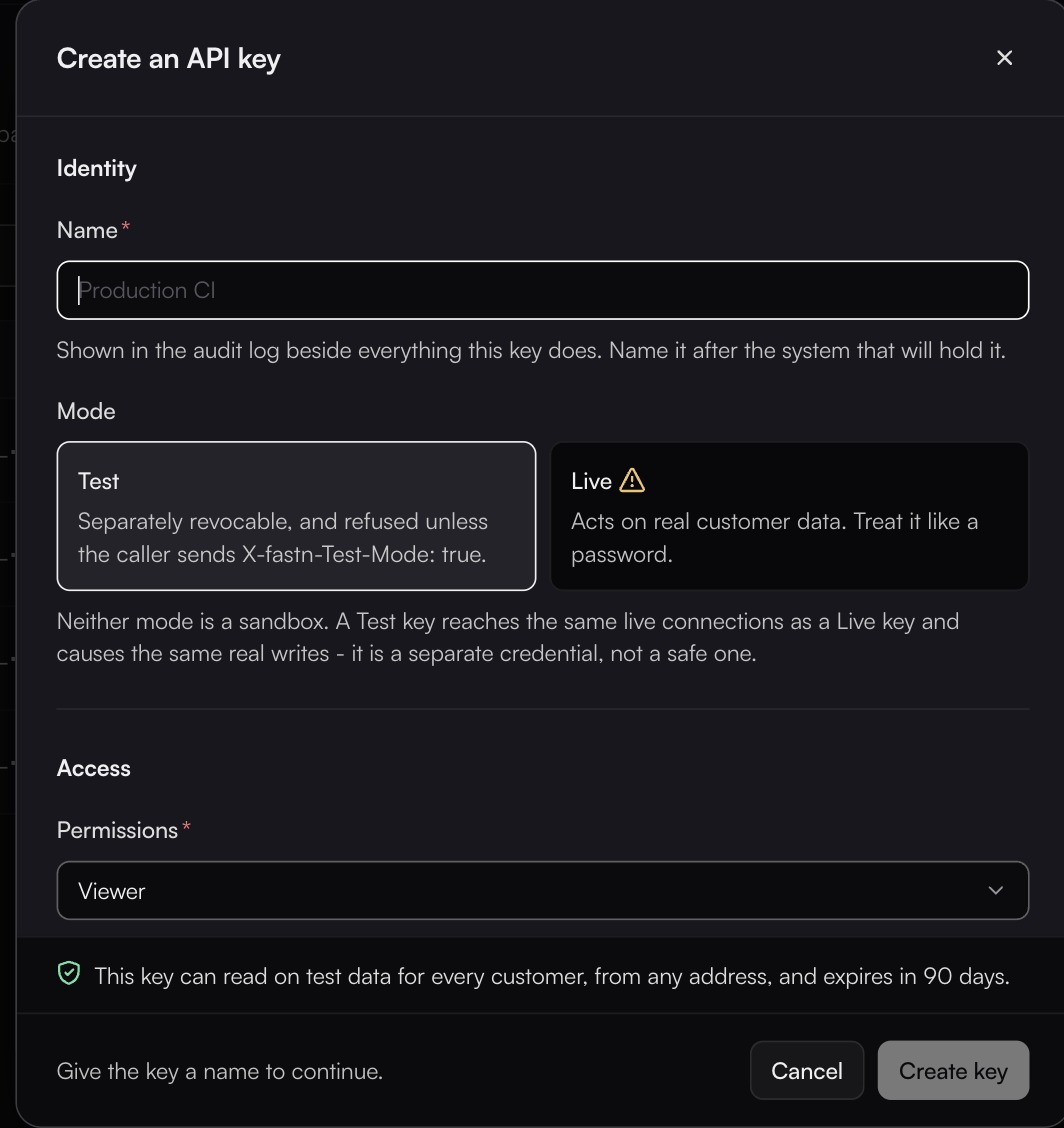
The dialog spells out that Test is a separate credential, not a sandbox.
The dialog runs in three sections: **Identity**, **Access** and **Limits**.
#### Quick steps
1. Go to **Embed** → **API keys and MCP** → **API keys** (`/access`).
2. Click **Create key**. The **Create an API key** dialog opens.
3. In the dialog:
* **Name**: give it something identifiable.
* **Mode**: select **Live** for production use or **Test** for dev use. A live key also needs an **Environment**.
* Set permissions, customers, allowed IP addresses, rate limit and expiry as needed.
* Optionally turn on **Verify caller identity (HMAC)**.
4. Click **Create key**.
#### Identity
**Name \***: shown in the audit log beside everything this key does. Name it after the system that will hold it, not after a person.
**Mode**: **Test** or **Live**, defaulting to **Test**.
| Mode | Behavior |
| -------- | --------------------------------------------------------------------------------------------------------------------------------------------- |
| **Test** | Runs the latest published version of your workflows, never a deployed environment. Refused unless the caller sends `X-fastn-Test-Mode: true`. |
| **Live** | Runs the workflows deployed to one **Environment** you pick in the dialog. Acts on real customer data. Treat it like a password. |
A live key is pinned to its environment: it runs what is deployed there, can also run the latest published version by sending `x-fastn-env: test`, and is refused (403) for any other environment. To run a workflow from your code, use a key for the environment it is deployed to.
{% hint style="danger" %}
Neither mode is a sandbox. A Test key reaches the same live connections as a Live key and causes the same real writes. It is a separate credential, not a safe one.
{% endhint %}
#### Access
**Permissions \*** takes one preset. Under **Roles**: **Admin** (offered only to callers who can grant full access, that is an owner, admin or platform admin), **Developer**, **Operator**, **Viewer** (the default) and **End User**. Under **Key presets**: **Embed backend** (for your server: mints embed tokens and registers customers on first use; the right choice for a backend behind `@fastn-ai/embed`) and **Custom** (only the permissions you tick). The role presets borrow the names of the people roles on [Roles](https://docs.fastn.ai/settings/manage/roles.md). Choose the narrowest that works: a key that only reads should stay on Viewer.
For every preset except **Admin**, the **What it can touch** matrix below shows exactly what it grants, and **Custom** lets you set each box yourself. **Admin** grants full access, so the matrix is hidden. Eleven resource groups:
| Resource | Permissions |
| --------------- | ----------------------------------------------------------------- |
| **Connectors** | create, read, update, delete, write |
| **Connections** | create, read, update, delete, share, decrypt |
| **Workflows** | create, read, update, delete, execute, deploy\_test, deploy\_prod |
| **Users** | create, read, update, invite, remove |
| **Settings** | read, update, manage |
| **Events** | create, read, update, delete, replay |
| **Secrets** | read, write, delete |
| **Executions** | create, read |
| **Widgets** | create, read, update, delete |
| **Customers** | create |
| **Unified API** | read, execute, customize |
{% hint style="warning" %}
`decrypt` on Connections and `read` on Secrets are the two boxes worth arguing about before you tick them. A key holding either can read credentials, and a key is easier to leak than a person.
{% endhint %}
**Customers it can reach**: **Every customer**, or **Only the ones I pick**. Narrowing it is not optional everywhere: the form notes that picking specific customers is *Required for keys used in an embed session.*
That note covers a key used directly as one customer's widget session. The backend key that registers customers and gets embed tokens should reach **Every customer**, because a key limited to specific customers is refused for any customer it doesn't list (see [Embed the widget](https://docs.fastn.ai/get-started/onboarding/embed-the-widget.md)).
**Verify caller identity (HMAC)** *(optional)*: turning it on asks callers to send a signed `x-identity-hmac` header, so a caller cannot change the `x-org-id` or `x-user-id` it claims to be. Pick **Enforce** (reject a missing or invalid hash) or **Monitor only** (log mismatches, let calls through). Left off, the key trusts the headers. The option is not offered on a key that reaches exactly one customer.
The signing secret is shown once at creation and cannot be shown again. If you lose it, open **Identity verification** on the key's **…** menu: you can switch the mode between **Off**, **Monitor only** and **Enforce**, or tick **Rotate the secret** to mint a new one (also shown once; the previous secret keeps validating until the next rotation). Turning verification off deletes the stored secret.
**Resource scope** *(optional)*: narrows the key to particular resources rather than everything its permissions would otherwise cover.
#### Limits
| Field | Notes |
| ------------------------------------- | -------------------------------------------------------------------------------------------------- |
| **Allowed IP addresses** *(optional)* | An allowlist. Left blank, the key works from any address. |
| **Rate limit** *(optional)* | A ceiling per minute for this key. |
| **Expires \*** | **In 30 days**, **In 90 days** (the default), **In a year**, **Never**, or **On a specific date**. |
The dialog keeps a live summary sentence at the bottom describing what you have built, so you can read back the whole key before committing:
> This key can read on test data for every customer, from any address, and expires in 90 days.
### Identity hash
When a key has identity verification turned on, each customer-specific request carries an identity hash that confirms the `x-org-id` and `x-user-id` you're sending are ones your backend actually authorized.
#### 1. Get your identity-verification secret
Once you create an API key with HMAC enabled the following dialog will appear. It contains the secret and code snippets to generate the HMAC key.
The key and the secret are shown once. They are blanked out in this screenshot.
**Safety precautions:**
* The secret cannot be shown again. If it is lost, rotate it from **Identity verification** on the key's **…** menu.
* Never ship this secret to the client. It only ever lives on your backend. If it appears in frontend code, anyone can forge a valid hash for any org or user.
#### 2. Compute the hash
The hash is an HMAC-SHA256 of the org ID and user ID, newline-joined, signed with your secret:
```js
const crypto = require("crypto");
const IDV_SECRET = process.env.IDV_SECRET;
function identityHash(orgId = '', userId = '') {
return crypto.createHmac("sha256", IDV_SECRET)
.update(`${orgId}\n${userId}`)
.digest("hex");
}
```
#### 3. Send it alongside the identity headers
Attach the result as `x-identity-hmac`, sent together with the plaintext `x-org-id` and `x-user-id`.
```
x-org-id:
x-user-id:
x-identity-hmac:
```
The plaintext headers tell the gateway which identity is being claimed; the hash proves your backend authorized that specific claim. What happens to a bad call depends on the key's mode: **Enforce** rejects a call whose hash is missing or doesn't match what the gateway recomputes from the plaintext values; **Monitor only** logs the mismatch and lets the call through; **Off** does not check.
### Using a key
```bash
curl -X POST https://YOUR_FASTN_HOST/api/v1/workflows/WORKFLOW_ID/execute \
-H "Authorization: Bearer fsk_live_" \
-H "Content-Type: application/json" \
-d '{ "input": { "key": "value" } }'
```
With a test key, add the `X-fastn-Test-Mode` header. Without it the call is refused with `403` and *Test API keys require X-fastn-Test-Mode: true header*:
```bash
-H "Authorization: Bearer fsk_test_" \
-H "X-fastn-Test-Mode: true"
```
`x-fastn-env` is optional: a test key always runs against `test`, so you never need to send it.
#### Which header carries the key
Every key starts `fsk_live_` or `fsk_test_`. The header it goes in depends on what you call:
| You call | Send the key as |
| ------------------------------------------------------------------------------------------------------------------------------- | -------------------------------------------------------------------------------- |
| The platform API, `https://api.fastn.dev/api/v1/…` (a workflow's `/execute`, `/embed/token`, every other route) | `Authorization: Bearer fsk_…` or `X-API-Key: fsk_…` |
| A [webhook trigger](https://docs.fastn.ai/build/integrations/triggers/webhooks.md)'s URL | `X-API-Key: fsk_…`, `Authorization: Bearer fsk_…` or `x-fastn-access-key: fsk_…` |
| A [connector's webhook URL](https://docs.fastn.ai/build/integrations/connectors/webhook-config.md), with **Require API key** on | `X-API-Key: fsk_…` or `x-fastn-access-key: fsk_…` |
`X-API-Key` works on all three. `x-fastn-access-key` on the platform API, or `Authorization` on a connector's webhook URL, is answered `401`. No endpoint reads `x-fastn-api-key`.
Full detail in the [HTTP API reference](https://docs.fastn.ai/reference/api.md).
### Practice worth keeping
* One key per consuming system, so revoking one does not take down four things.
* Rotate on a schedule, and when anyone with access leaves.
* Never in client-side code. Browser-facing widgets use short-lived embed tokens minted by your backend. See [Embedding the widget](https://docs.fastn.ai/embed/embedding.md).
* Check **Last used** before revoking. A key showing Never is either unused or misconfigured; either way, find out which.
* Set an expiry rather than **Never**, and turn on HMAC verification for any key a customer's browser session depends on.
{% hint style="info" %}
**API keys per customer** is one of the limits listed under [Billing](https://docs.fastn.ai/settings/manage/billing.md). Check there if key creation starts refusing.
{% endhint %}
---
# Agent Instructions
This documentation is published with GitBook. GitBook is the documentation platform designed so that both humans and AI agents can read, navigate, and reason over technical content effectively. Learn more at gitbook.com.
## Querying This Documentation
If you need additional information that is not directly available in this page, you can query the documentation by asking a question.
Perform an HTTP GET request on the following URL with the `ask` and `goal` query parameters:
```
GET https://docs.fastn.ai/embed/api-keys.md?ask=&goal=
```
`ask` is the immediate question: it should be specific, self-contained, and written in natural language.
`goal` is what the user is ultimately trying to achieve, the reason they need the answer. Sharing it helps GitBook give you a better, more relevant answer. A goal is most helpful when it describes the outcome the user wants rather than restating the question. For example, with `ask=how do I create an API token`, a goal like `automate deployments from our CI pipeline` lets GitBook tailor the answer to that use case.
The response will contain a direct answer to the question and relevant excerpts and sources from the documentation.
Use this mechanism when the answer is not explicitly present in the current page, you need clarification or additional context, or you want to retrieve related documentation sections.