> For the complete documentation index, see [llms.txt](https://docs.fastn.ai/llms.txt). Markdown versions of documentation pages are available by appending `.md` to page URLs; this page is available as [Markdown](https://docs.fastn.ai/classic/fastn-ucl/getting-started.md).
# Getting Started
Connect your AI agents to 250+ enterprise apps with managed authentication, multi-tenant support, and sub-second execution through Fastn's Unified Context Layer (UCL).
Unified Context Layer (UCL) enables your SaaS platforms to deliver embedded, secure, and scalable AI integrations. This section covers setting up your account, connecting apps, embedding AI clients, and understanding how UCL manages external systems, connections, and actions.
## **1. Workspace Selection**
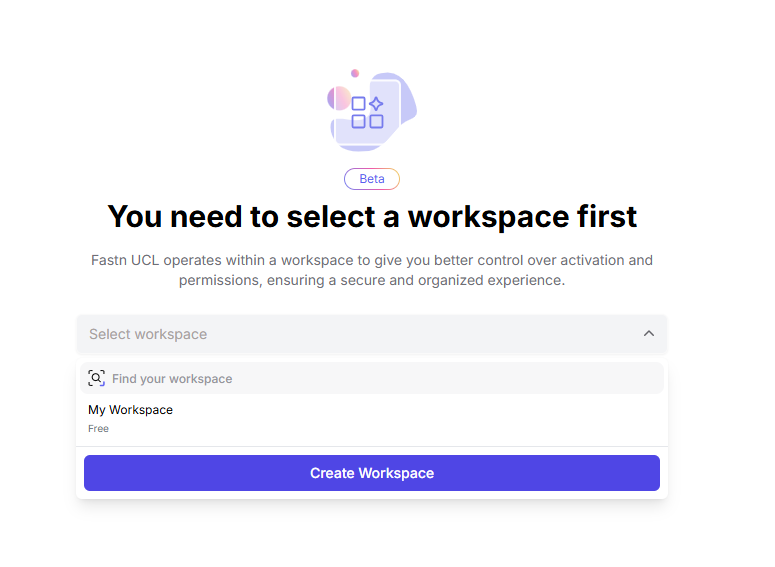
After you log in to [UCL](https://app.ucl.dev/), you can select a workspace or create a new one by clicking on **Create Workspace** button, after which you'll be directed to the next page to set up your integrations.
{% hint style="info" %}
When you first log in to UCL, a workspace titled "My Workspace" is created by default.
{% endhint %}
## 3. Start Building
* After selecting your workspace, complete the quick onboarding questions.
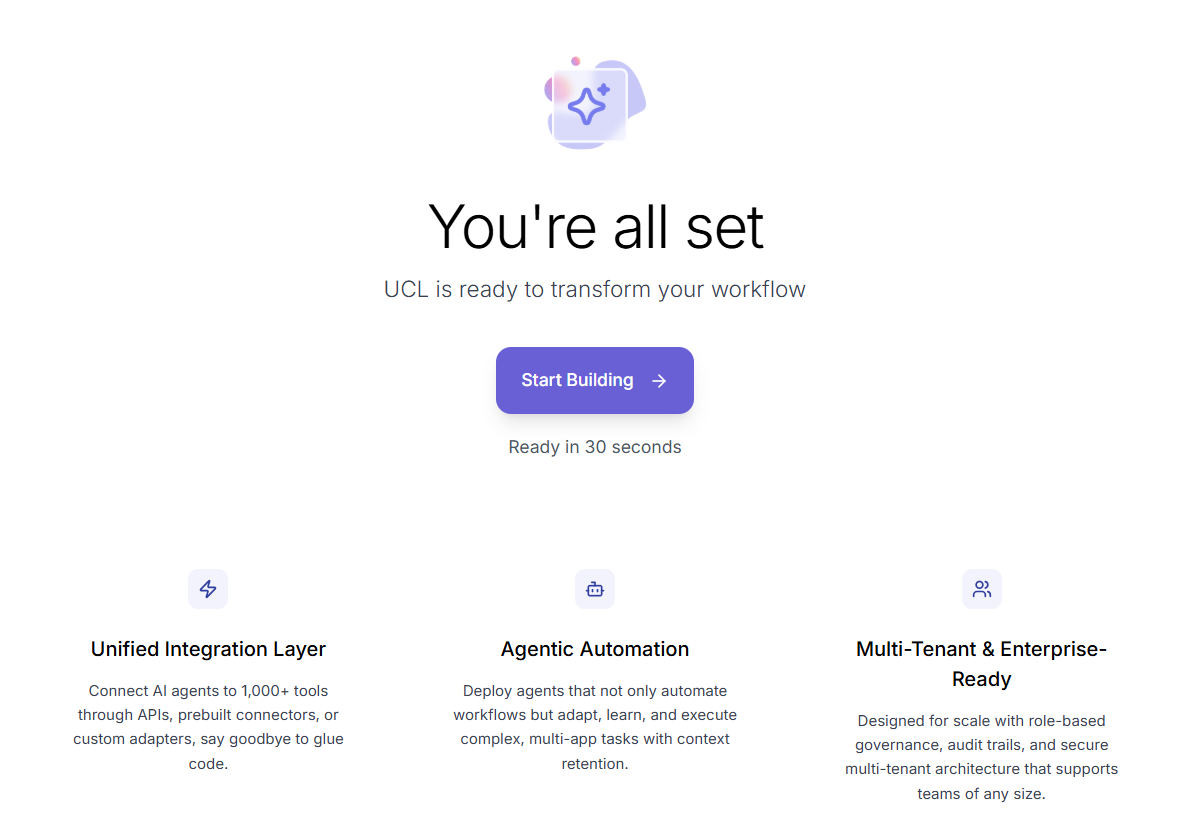
* This will lead you to the next page where you can click on **Start Building** to open the apps you selected during onboarding.
### Select Your Apps Then Chat
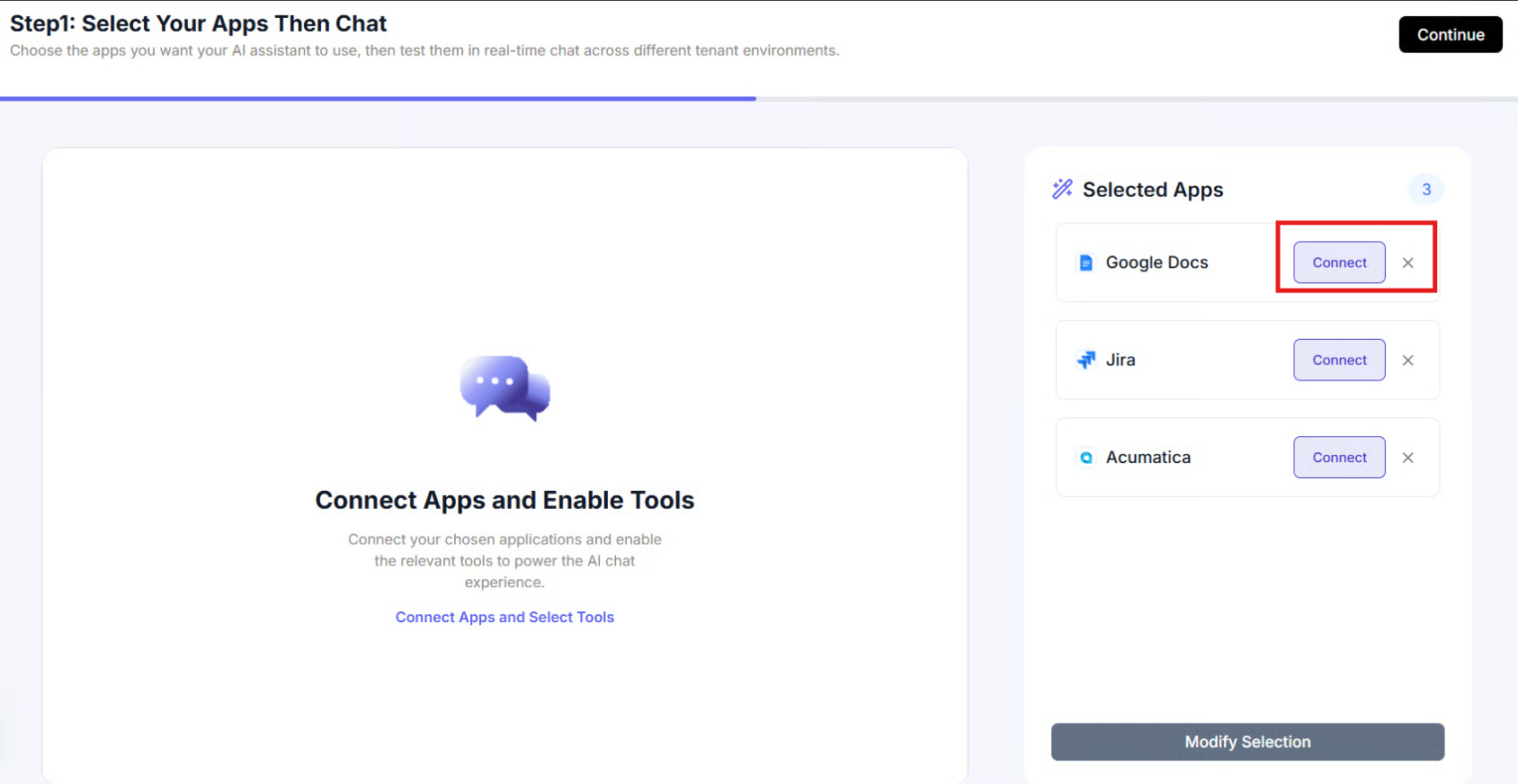
* Next, you can see the interface for the first step, where you can see all the apps you have selected.
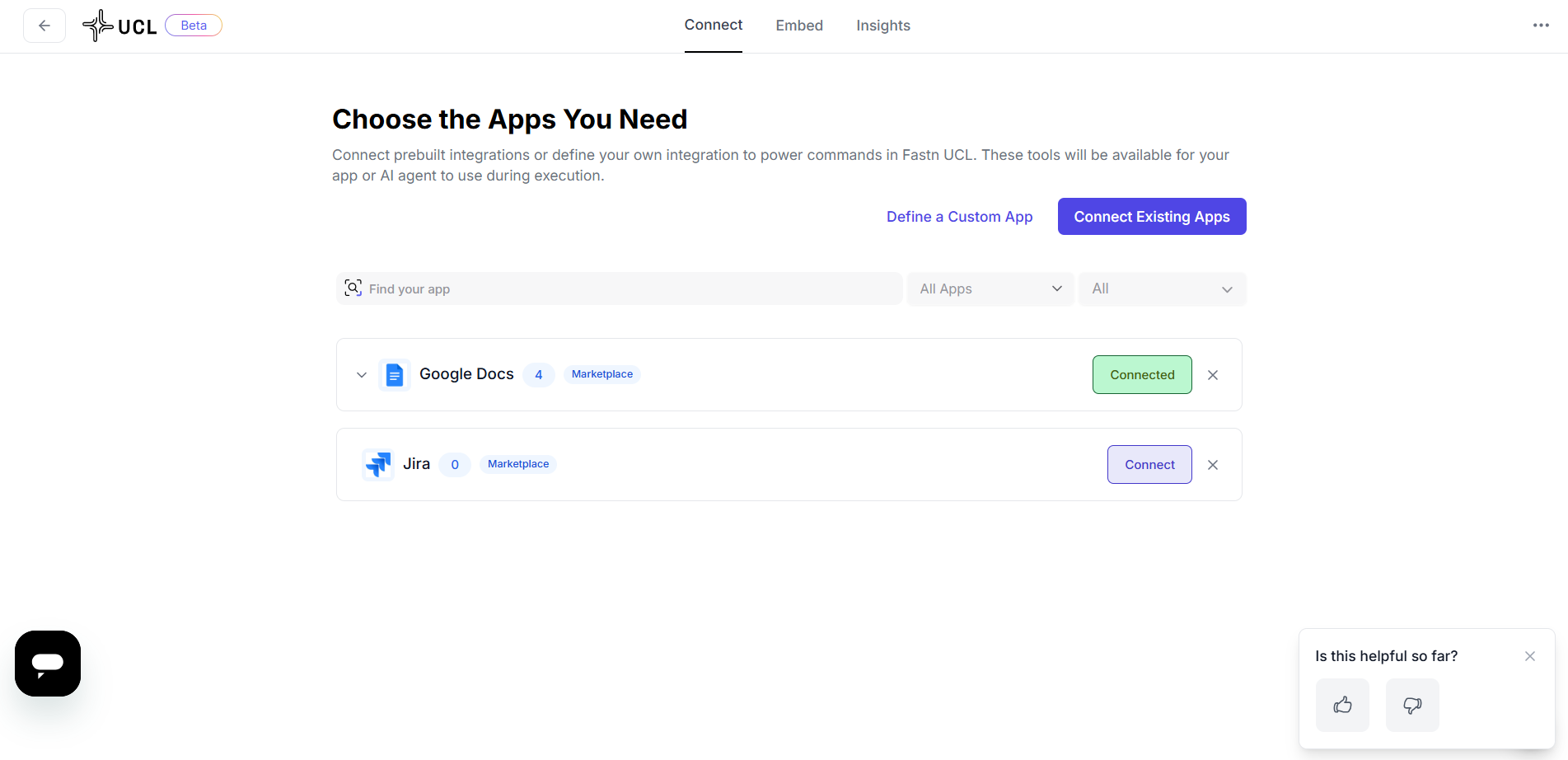
> You can connect each app using the **Connect** button or remove an app by clicking on 'x'.
* Once an App is connected, you will see the button labelled 'Connected'.
* UCL's AI Assistant Playground would now be seen on the left side of the screen, where you can give a prompt to perform actions with the selected apps.
{% hint style="info" %}
You need to have at least one app connected to see the AI Assistant.
{% endhint %}
{% hint style="info" %}
Use **Modify Selection** in the “Selected Apps” section to adjust your choices.
{% endhint %}
Click on **Continue** in the top-right corner to move to the next step.
## 4. Finalize Connection Setup
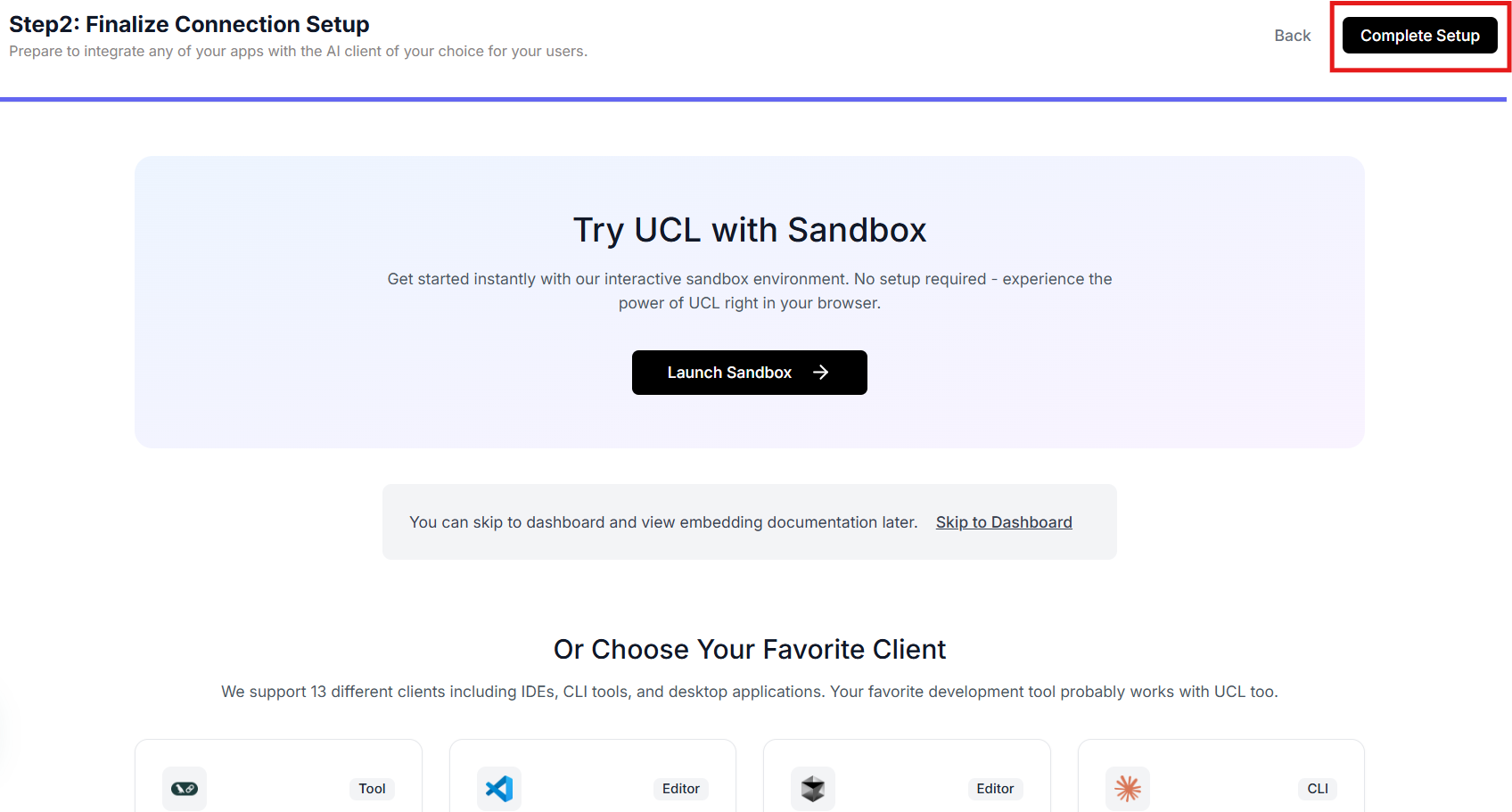
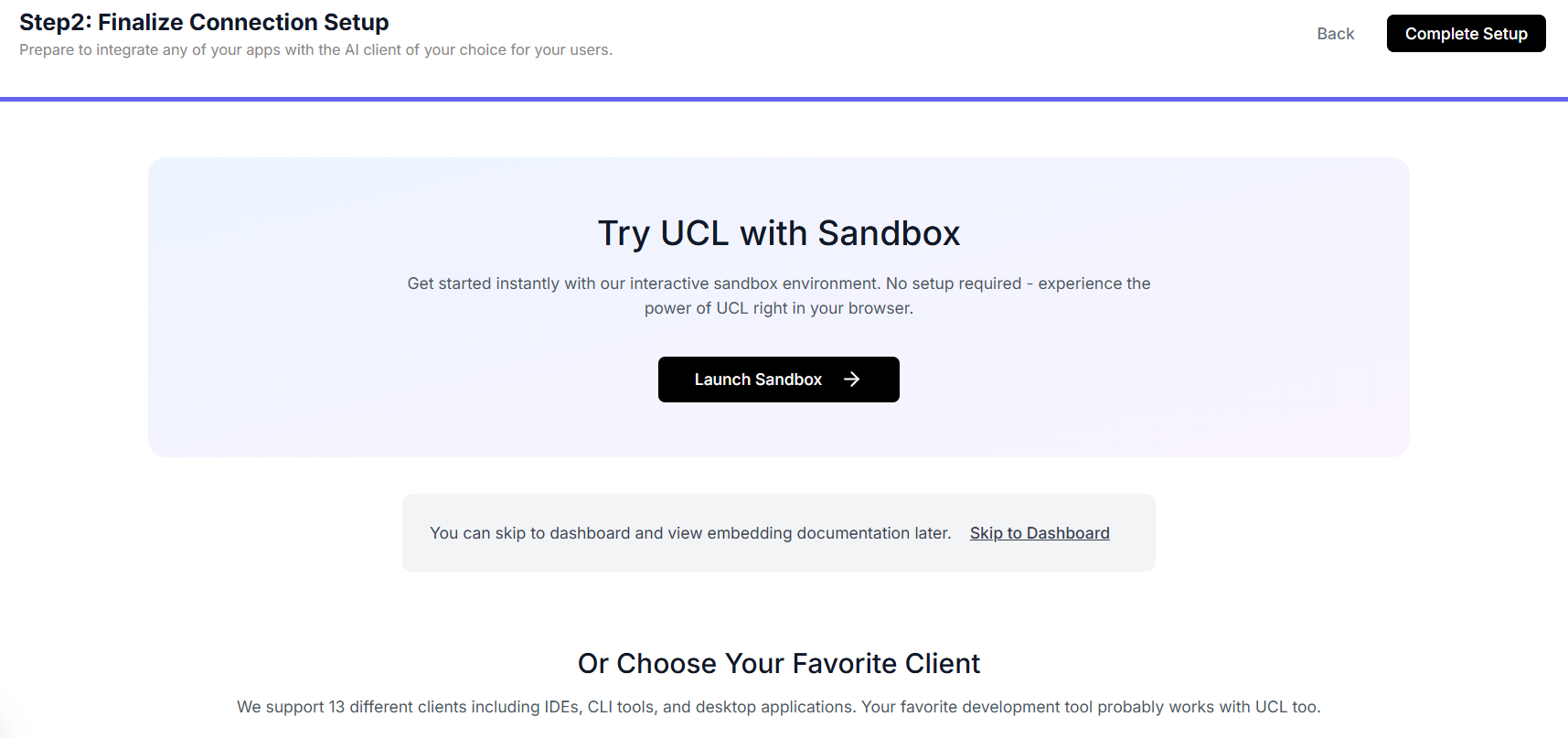
* You will now be moved to the second step, where you can finalize your connection setup.
* You can choose **Sandbox** to try UCL in the interactive test environment. Or select **Favorite Client** to test UCL with your preferred client app
* Click **Complete Setup** (top right) to move to the **Connect** page.
## 5. Choose Apps & Actions
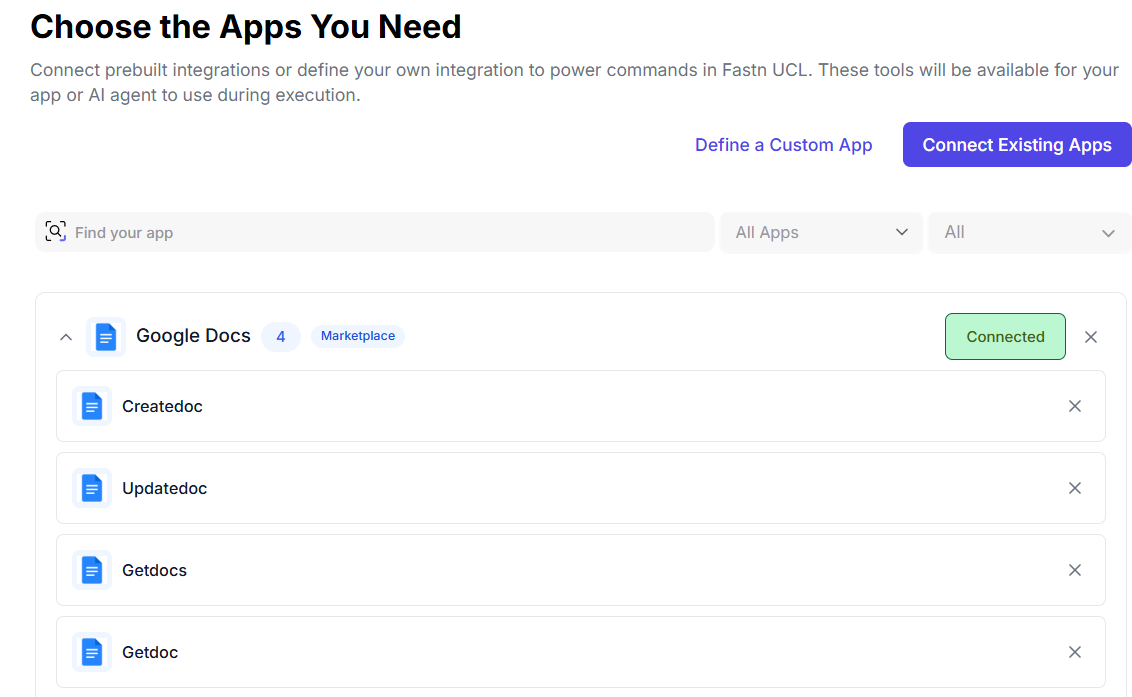
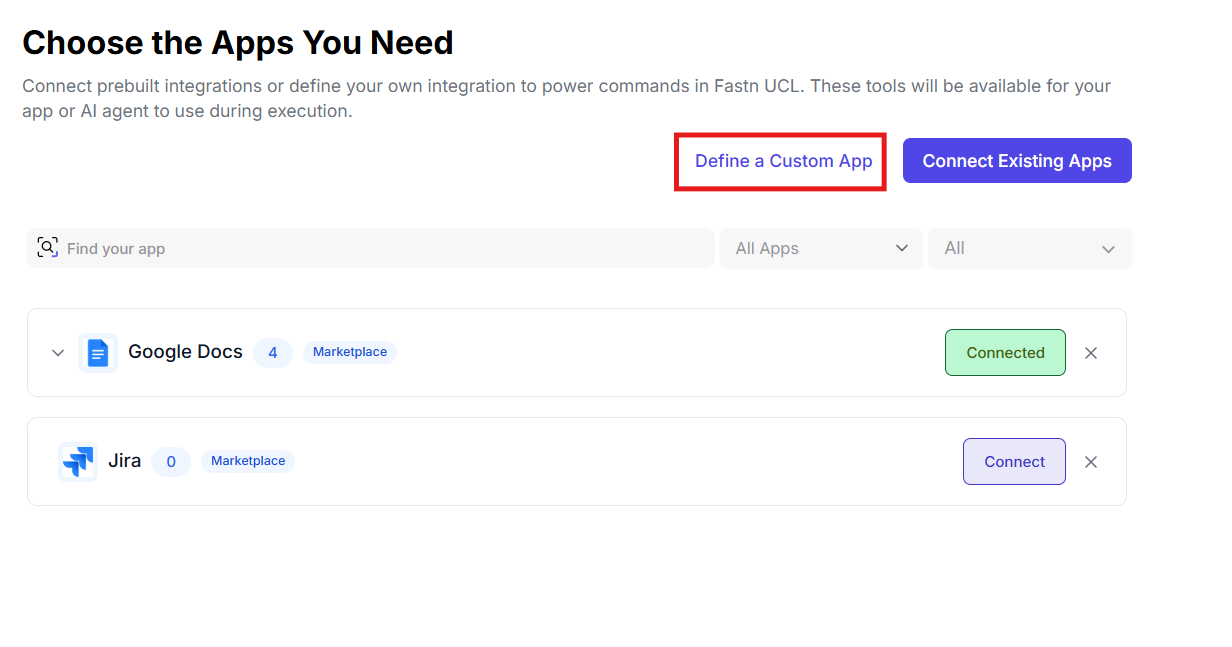
* On the **Connect** Page in your Dashboard, you can **Choose the Apps You Need**, along with viewing your selected apps and enabled actions.
> Actions represent the functions you can perform within each app.
### Connecting Existing Apps
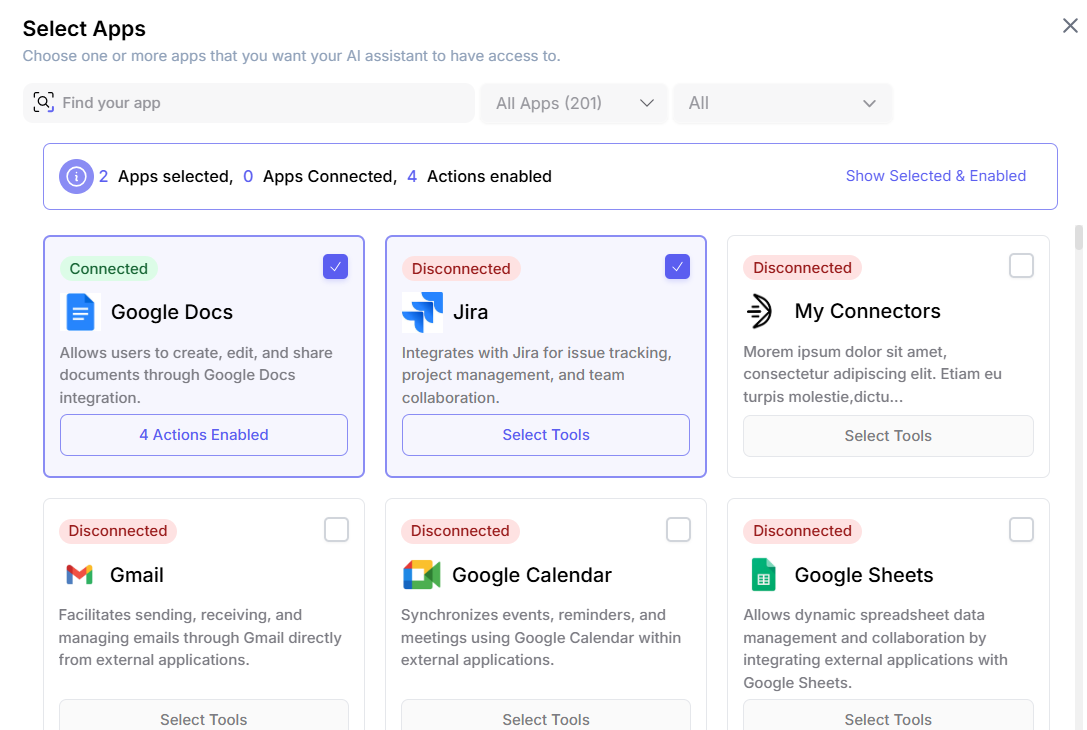
* From the **Connecting Existing Apps** button, browse and connect to any app available in UCL.
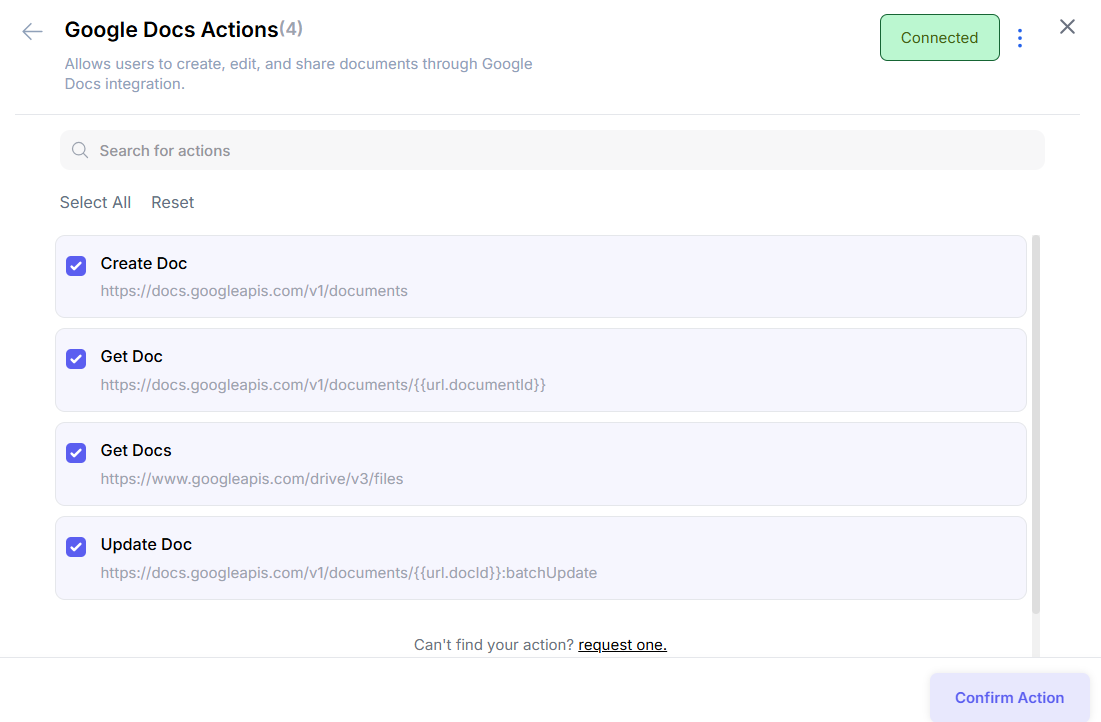
> You can select any app by checking the top-right box on the app and click on **Select Tools** to modify your action selection and then finalize this setup by clicking the **Confirm Action** button in the right-bottom.
### Custom Apps
You can also **create a Custom App**, which means:
* Building your own application with preferred actions, or
* Adding new actions to existing tools.
* Learn more about custom tools [here](/classic/fastn-ucl/getting-started/about-unified-context-layer/creating-a-custom-tool.md).
## 6. Embed AI Clients
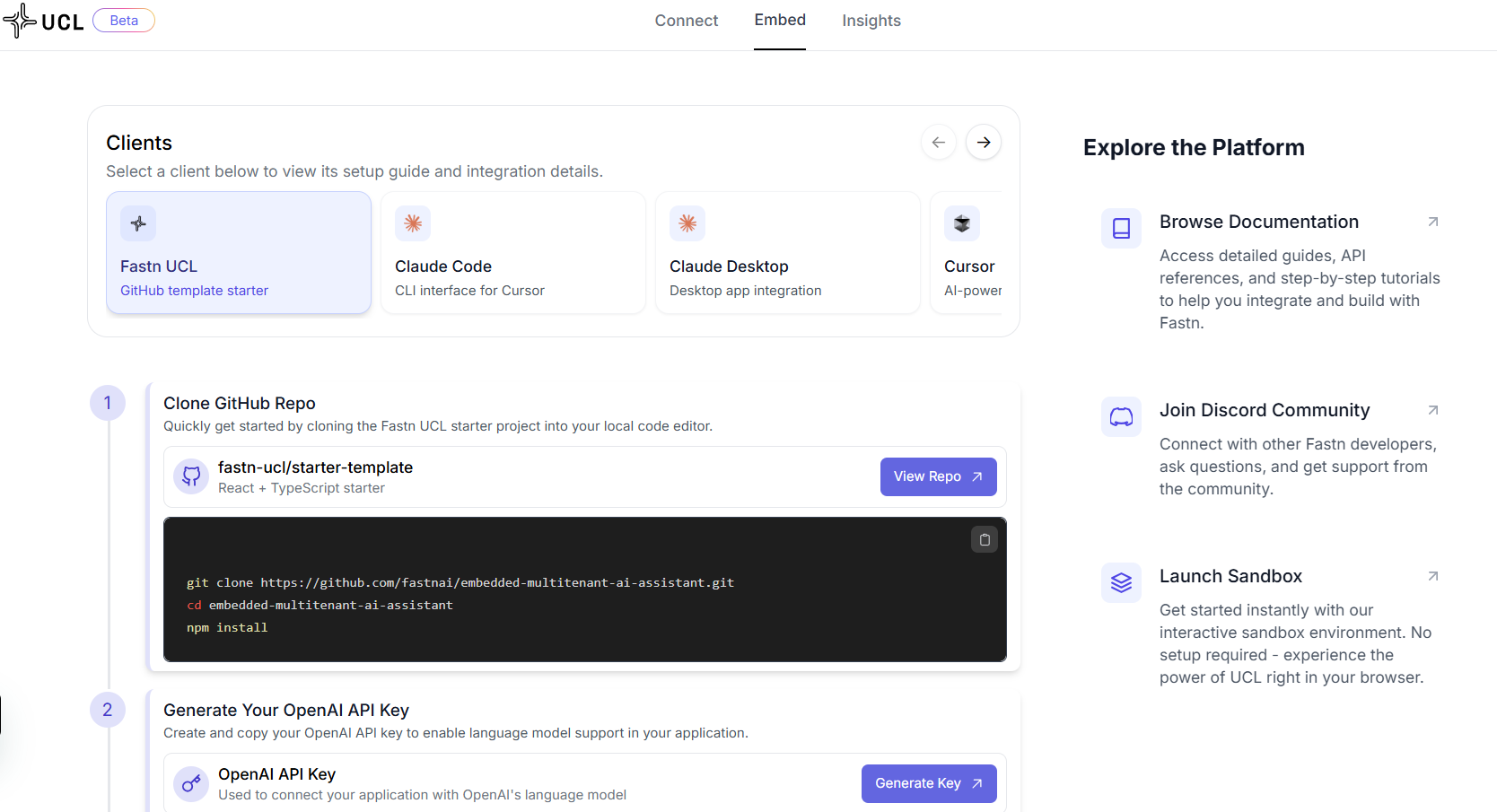
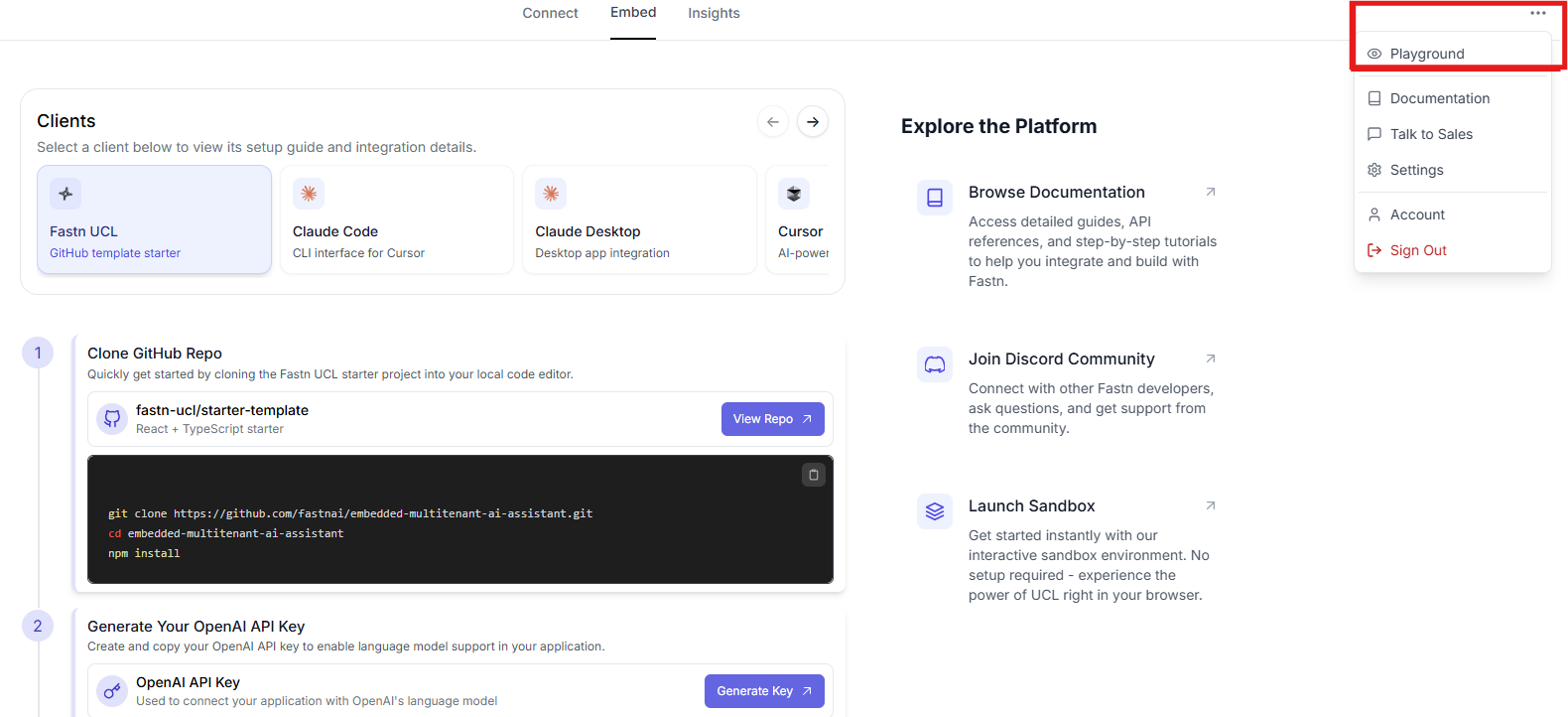
* Open the **Embed** section (top corner) to access detailed instructions for connecting any AI client with UCL.
* You can navigate and select through the list of **Clients** and have a complete step-by-step guide to connect with any of the listed prebuilt AI clients or your own AI agent.
* From the sidebar, you can:
* Browse Platform [Documentation](https://docs.fastn.ai)
* Launch [Sandbox](https://codesandbox.io/p/sandbox/github/fastnai/embedded-multitenant-ai-assistant?file=%2F.env)
* Join the [Discord Community](https://discord.gg/rePMvnURzg)
## 7. Monitor with Insights
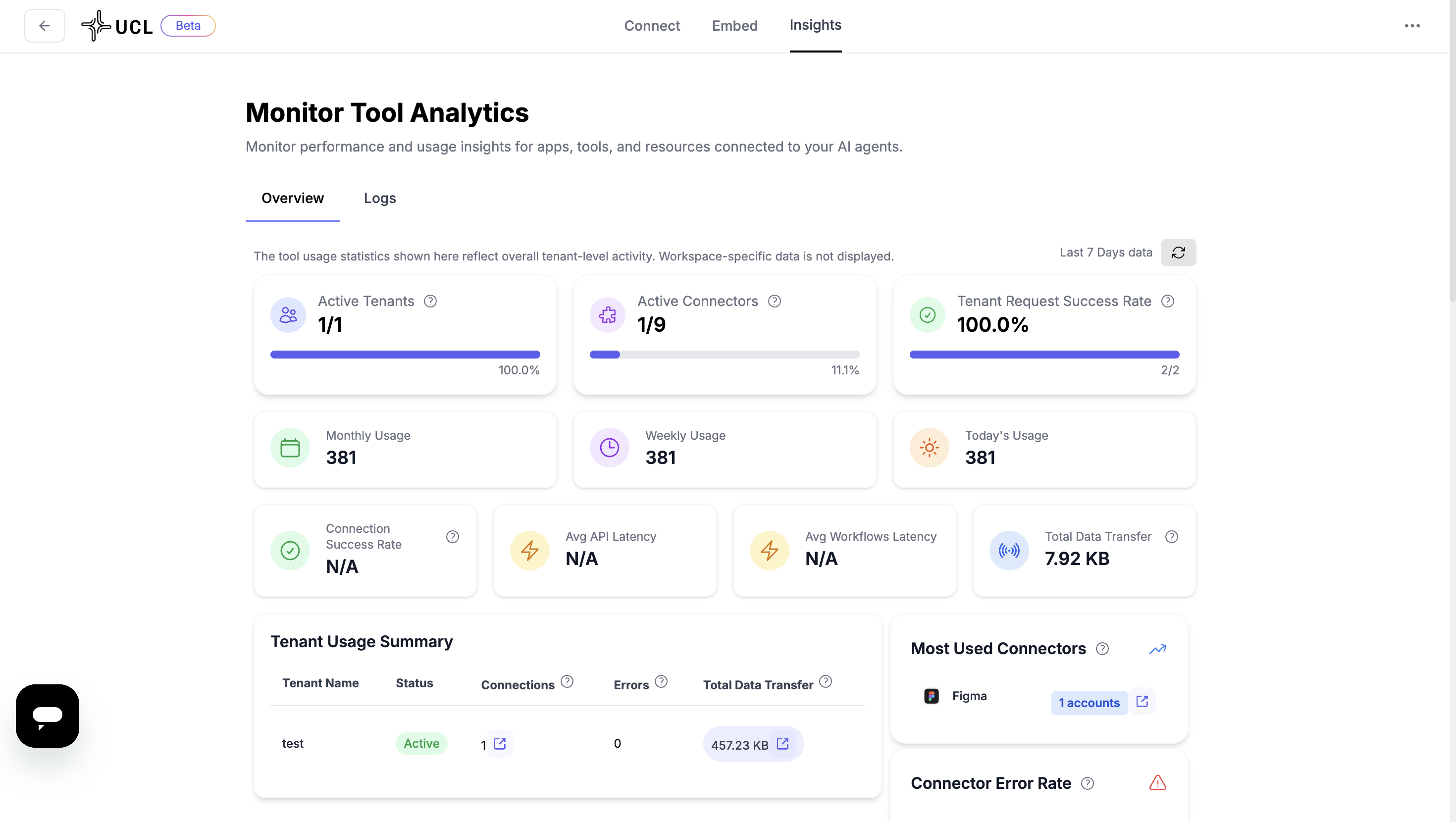
* The **Insights** dashboard provides monitoring metrics, including:
* Active tenants and tools
* Tenant requests and success rate
* Usage stats (monthly, weekly, today)
* Connection success rate and vulnerability checks
Learn more about UCL Monitoring [here](/classic/fastn-ucl/getting-started/about-unified-context-layer/monitoring.md).
## 8. Test in Playground
* You can use the **Playground** (from the three-dot menu, top right) to test all connected apps.
> Run commands directly with your AI agent against the integrated apps.
### Example Use Cases
{% embed url="" %}
{% embed url="" %}
{% embed url="" %}
---
# Agent Instructions
This documentation is published with GitBook. GitBook is the documentation platform designed so that both humans and AI agents can read, navigate, and reason over technical content effectively. Learn more at gitbook.com.
## Querying This Documentation
If you need additional information that is not directly available in this page, you can query the documentation by asking a question.
Perform an HTTP GET request on the following URL with the `ask` and `goal` query parameters:
```
GET https://docs.fastn.ai/classic/fastn-ucl/getting-started.md?ask=&goal=
```
`ask` is the immediate question: it should be specific, self-contained, and written in natural language.
`goal` is what the user is ultimately trying to achieve, the reason they need the answer. Sharing it helps GitBook give you a better, more relevant answer. A goal is most helpful when it describes the outcome the user wants rather than restating the question. For example, with `ask=how do I create an API token`, a goal like `automate deployments from our CI pipeline` lets GitBook tailor the answer to that use case.
The response will contain a direct answer to the question and relevant excerpts and sources from the documentation.
Use this mechanism when the answer is not explicitly present in the current page, you need clarification or additional context, or you want to retrieve related documentation sections.
.png?alt=media)
.png?alt=media)