> For the complete documentation index, see [llms.txt](https://docs.fastn.ai/llms.txt). Markdown versions of documentation pages are available by appending `.md` to page URLs; this page is available as [Markdown](https://docs.fastn.ai/build/triggers/schedulers.md).
# Schedule triggers
A trigger that fires on a clock you set.
A schedule trigger fires on a clock you set: nightly reconciliation, hourly pulls, anything time-based.
**Columns:** `Name`, `Tenant`, `Schedule`, `Next run`, `Last run`, `Status`, `Failures`, `Timezone`, `Routes`, `Created`, `Actions`.
Three of those are worth knowing before you scan the table:
* **`Schedule`** shows the cron expression the trigger compiles to, whichever mode built it.
* **`Failures`** counts *consecutive* failures, and resets on a success. A number climbing here is the early warning that fastn is about to disable the trigger for you. See [when fastn disables a trigger](/build/triggers.md#when-fastn-disables-a-trigger-for-you).
* **`Tenant`** is the customer a trigger belongs to, and reads `—` for org-level triggers.
### Create a schedule trigger
{% stepper %}
{% step %}
#### Name it
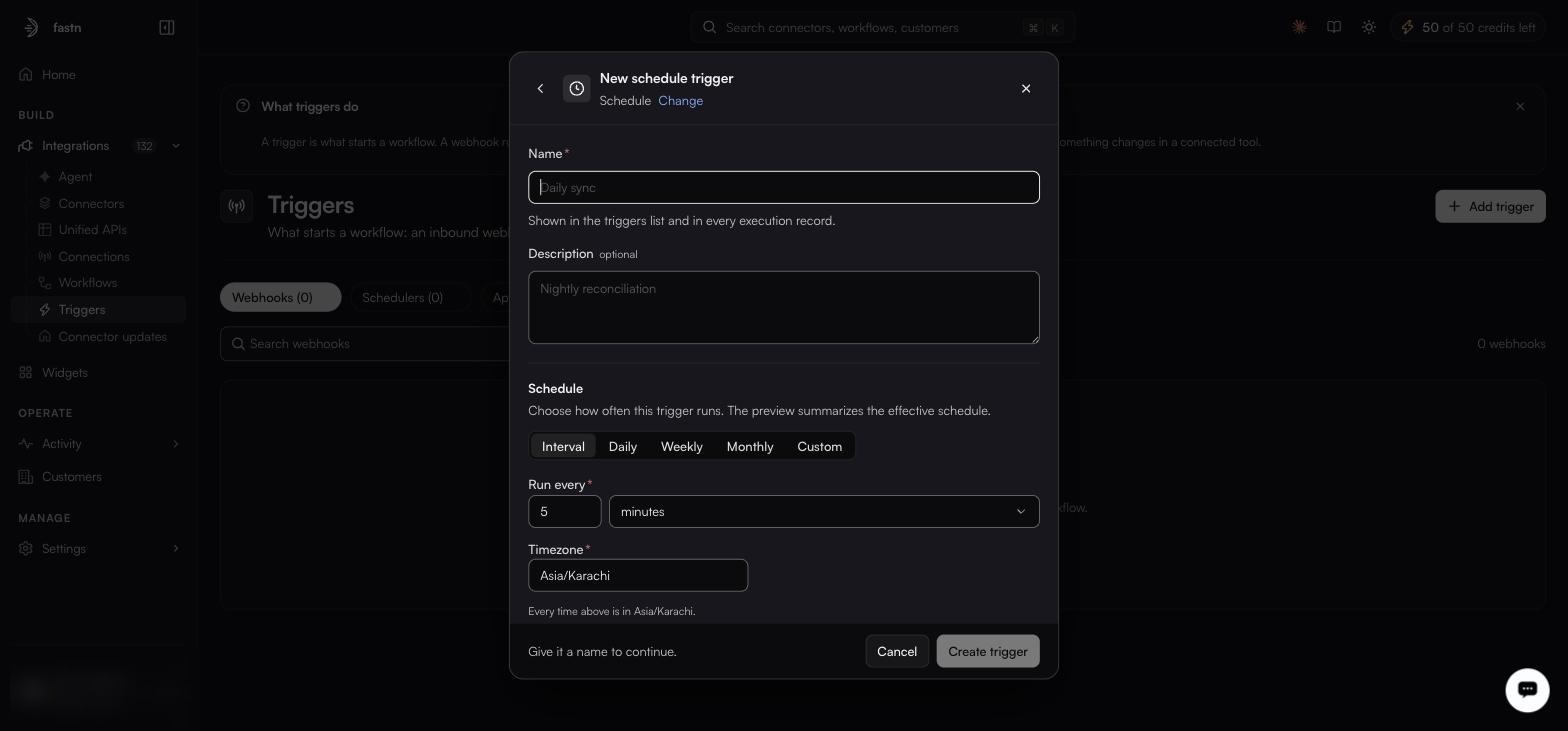
From **Add trigger**, choose **Schedule**, and give it a **Name** (and an optional **Description**).
Interval is the default mode, and the timezone defaults to your browser's.
{% endstep %}
{% step %}
#### Pick a mode and set the schedule
Five modes:
| Mode | Configure |
| ------------ | ------------------------------------------------------------------------------------------------------ |
| **Interval** | The default. **Run every** *n* + `minutes` / `hours` / `days`, with a live preview: *Every 5 minutes*. |
| **Daily** | **Time**, defaulting to 09:00. |
| **Weekly** | S–M–T–W–T–F–S toggles, and a time. |
| **Monthly** | **Day of month**, 1–31 (one day, not several) and a time. |
| **Custom** | **Cron expression**, required. *Standard 5-field cron: minute hour day-of-month month day-of-week* |
**Whichever mode you pick, fastn stores a cron expression**, and that is what the list's `Schedule` column shows. A trigger built with *Daily, 06:00* displays `0 6 * * *`; one built with *Interval, every 5 minutes* displays `*/5 * * * *`. The modes are a friendlier way to write the same thing, which is also why **Custom** exists: it is the escape hatch for schedules the other four cannot express.
{% endstep %}
{% step %}
#### Set the timezone and start
**Timezone** is required and defaults to your browser's zone, not your organisation's, and not the one on [your profile](/manage/profile.md), which only controls how times are displayed to you. Two more fields sit alongside it: **Starts at**, optional, and **Run immediately on create**, a checkbox.
{% endstep %}
{% step %}
#### Add routes, with a payload if the workflow needs one
Routes on a schedule trigger carry one field the other two do not: **Payload (JSON)**, optional, which is the body handed to the workflow when there is no inbound request to supply one.
{% endstep %}
{% step %}
#### Set the advanced options, if you need them
| Field | Notes |
| -------------------------- | ----------------------------------------------------------------------------------------------------------------------------------- |
| **Scheduler ID** | Optional. Leave it empty and one is generated. |
| **Delay (minutes)** | Default `0`. Holds the run back by this many minutes after the scheduled moment: useful when an upstream system needs a head start. |
| **Keep failed deliveries** | Whether failed deliveries are retained so you can inspect and replay them, rather than discarded. |
| {% endstep %} | |
{% step %}
#### Create it
Select **Create trigger** (there is no Save button) and it joins the **Schedulers** list. **Trigger Now** fires it immediately without waiting for the next scheduled moment; it sits in the footer of the trigger's detail panel, which opens when you click the row.
{% endstep %}
{% endstepper %}
{% hint style="info" %}
Every time on this form is interpreted in the timezone you pick, not the viewer's. If your team is spread out, agree on one and stay with it.
{% endhint %}
---
# Agent Instructions
This documentation is published with GitBook. GitBook is the documentation platform designed so that both humans and AI agents can read, navigate, and reason over technical content effectively. Learn more at gitbook.com.
## Querying This Documentation
If you need additional information that is not directly available in this page, you can query the documentation by asking a question.
Perform an HTTP GET request on the following URL with the `ask` and `goal` query parameters:
```
GET https://docs.fastn.ai/build/triggers/schedulers.md?ask=&goal=
```
`ask` is the immediate question: it should be specific, self-contained, and written in natural language.
`goal` is what the user is ultimately trying to achieve, the reason they need the answer. Sharing it helps GitBook give you a better, more relevant answer. A goal is most helpful when it describes the outcome the user wants rather than restating the question. For example, with `ask=how do I create an API token`, a goal like `automate deployments from our CI pipeline` lets GitBook tailor the answer to that use case.
The response will contain a direct answer to the question and relevant excerpts and sources from the documentation.
Use this mechanism when the answer is not explicitly present in the current page, you need clarification or additional context, or you want to retrieve related documentation sections.