> For the complete documentation index, see [llms.txt](https://docs.fastn.ai/llms.txt). Markdown versions of documentation pages are available by appending `.md` to page URLs; this page is available as [Markdown](https://docs.fastn.ai/build/integrations/triggers.md).
# Triggers
What starts a workflow: an inbound webhook, a schedule, or an event from a connected system.
**Integrations → Triggers** · `/integrations?tab=triggers`
A workflow with no trigger only runs when something calls it. A trigger is what makes it run on its own.
The page splits into three sub-tabs (**Webhooks**, **Schedulers** (`?trigger=scheduler`) and **App events** (`?trigger=app`)), with a status select offering `All statuses`, `Active` and `Disabled`.
Each list paginates, with a footer reading `Page 1 of 4 · 30 total` and Previous/Next controls. **A trigger you just created may be on a later page rather than missing**: check the count before you conclude it failed. Every table also carries a leading select-all checkbox.
{% hint style="info" %}
**One concept, several labels.** The dialog calls it **Schedule**, the sub-tab **Schedulers**, the browser title *Scheduled triggers*, and a trigger's own Type field **Scheduler**. They are all the same thing. These pages say *schedule trigger* throughout, and the list you want is the **Schedulers** tab.
{% endhint %}
### Choosing a type
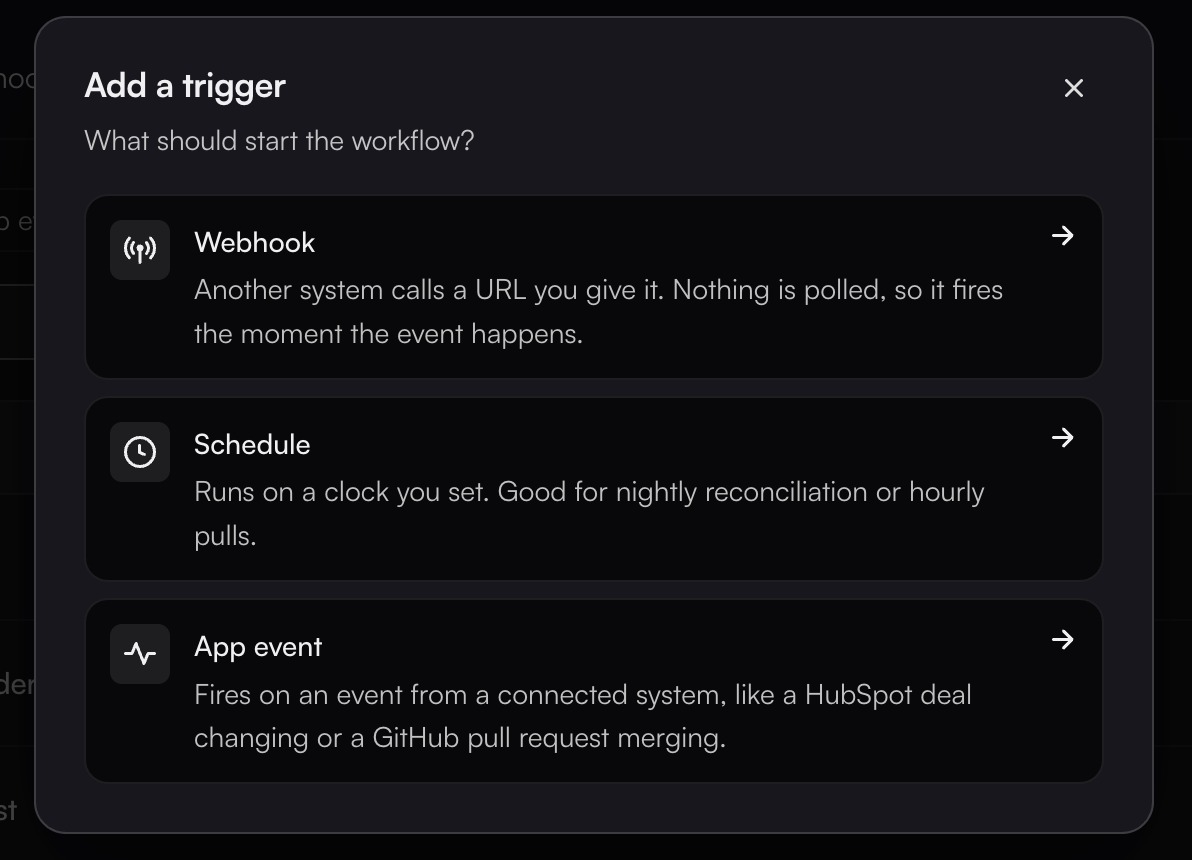
Each option carries its own one-line description, reproduced nowhere below, so read them here.
| Type | Reach for it when |
| ------------- | ---------------------------------------------------------------------------- |
| **Webhook** | The sender can push, and you want it immediate. |
| **Schedule** | Nightly reconciliation, hourly pulls, anything time-based. |
| **App event** | A HubSpot deal moves, a GitHub PR merges, and the connector supports events. |
### Inspecting a trigger
Clicking any row opens a side panel, which is where most of a trigger's life is visible. It carries:
* **Details**. On a schedule trigger this includes **Next run**, **Last run**, **Consecutive Failures** and **Re-enable Cooldown** (and **Delay**, when one is set).
* **Retry policy**, shown only when the trigger has delivery retries configured.
* **Status History (N)**, on schedule triggers only.
* **Routes (N)**: where each fire goes.
* **Failed deliveries (N)**: deliveries that ran out of attempts, each with **Replay** and **Delete**.
Its footer holds **Close**, **Trigger Now** (schedule triggers only) and **Edit**.
The panel (not the row menu) is where you read *why* a trigger is in the state it is. Status History is the only place a change of status is explained.
### Managing triggers
The status select separates active from disabled. Disabling a trigger stops it firing without losing its configuration: the right move while you fix a workflow, and better than deleting it.
#### When fastn disables a trigger for you
**Disabling is not only something you do.** A schedule trigger that keeps failing is disabled by the platform, which is why the Schedulers list has a **Failures** column at all. It counts consecutive failures, and it resets when a run succeeds.
When the platform disables one:
* The trigger's status becomes `Disabled`, and the row's status cell adds **(auto)**; hover it to read the reason. A trigger you disabled by hand shows no **(auto)** marker.
* A **Re-enable Cooldown** applies, shown in the scheduler detail panel (30 minutes unless it was set otherwise). Once the cooldown passes, fastn re-enables the trigger automatically. The cooldown can be set from 1 to 1440 minutes. The exception is a trigger disabled because its workflow was deleted or was never published: a cooldown does not fix that, so it stays disabled until someone re-enables it by hand, even though the panel still shows the stored cooldown.
* The reason and the moment are recorded in **Status History** on the detail panel, which shows the last 20 status changes.
So if a nightly job silently stops, open the row, read Status History, and look at the Failures count: do not assume someone on your team turned it off.
{% hint style="warning" %}
**By default a schedule trigger is auto-disabled after 5 consecutive failed runs.** The notification fastn sends says so in its own words: the trigger failed that many times in a row, "which is the limit of 5". Keep that number in mind when you design a workflow's own retries.
{% endhint %}
### In this section
* [Webhook triggers](https://docs.fastn.ai/build/integrations/triggers/webhooks.md)
* [Schedule triggers](https://docs.fastn.ai/build/integrations/triggers/schedulers.md)
* [App event triggers](https://docs.fastn.ai/build/integrations/triggers/app-events.md)
---
# Agent Instructions
This documentation is published with GitBook. GitBook is the documentation platform designed so that both humans and AI agents can read, navigate, and reason over technical content effectively. Learn more at gitbook.com.
## Querying This Documentation
If you need additional information that is not directly available in this page, you can query the documentation by asking a question.
Perform an HTTP GET request on the following URL with the `ask` and `goal` query parameters:
```
GET https://docs.fastn.ai/build/integrations/triggers.md?ask=&goal=
```
`ask` is the immediate question: it should be specific, self-contained, and written in natural language.
`goal` is what the user is ultimately trying to achieve, the reason they need the answer. Sharing it helps GitBook give you a better, more relevant answer. A goal is most helpful when it describes the outcome the user wants rather than restating the question. For example, with `ask=how do I create an API token`, a goal like `automate deployments from our CI pipeline` lets GitBook tailor the answer to that use case.
The response will contain a direct answer to the question and relevant excerpts and sources from the documentation.
Use this mechanism when the answer is not explicitly present in the current page, you need clarification or additional context, or you want to retrieve related documentation sections.