> For the complete documentation index, see [llms.txt](https://docs.fastn.ai/llms.txt). Markdown versions of documentation pages are available by appending `.md` to page URLs; this page is available as [Markdown](https://docs.fastn.ai/build/connectors/the-catalogue.md).

# The catalogue

The Connectors page: header buttons, categories, search, filters, connector cards and the guide panel.

`/integrations?tab=connectors` lists every connector your workspace can use: the ones fastn manages and the ones your workspace created.

<figure><img src="https://1255842839-files.gitbook.io/~/files/v0/b/gitbook-x-prod.appspot.com/o/spaces%2F3iSr2Tx8FvvuoLPncziH%2Fuploads%2Fgit-blob-0357615cce430af78755c56d9d5e2a3f1fe509b8%2Fconnectors-filter-connected.webp?alt=media" alt="The Connectors page filtered to Connected, showing 4 connectors (Cin7 Core, Google Gmail, HubSpot and OpenAI), each badged Connected with an Add another connection button"><figcaption><p>The <strong>Connected</strong> chip narrows the list to connectors that already have a connection.</p></figcaption></figure>

### Page header

| Button                | What it does                                                                                                                              |
| --------------------- | ----------------------------------------------------------------------------------------------------------------------------------------- |
| **Import**            | Opens a file picker that accepts one `.json` connector file. See [Importing and exporting](/build/connectors/importing-and-exporting.md). |
| **Request connector** | Asks fastn to build a connector you need. See [Request a connector](/build/connectors/creating-a-connector.md#request-a-connector).       |
| **Create connector**  | Opens the Create a connector dialog. See [Creating a connector](/build/connectors/creating-a-connector.md).                               |

### Finding a connector

| Control                               | What it does                                                                                                                                            | URL parameter                         |
| ------------------------------------- | ------------------------------------------------------------------------------------------------------------------------------------------------------- | ------------------------------------- |
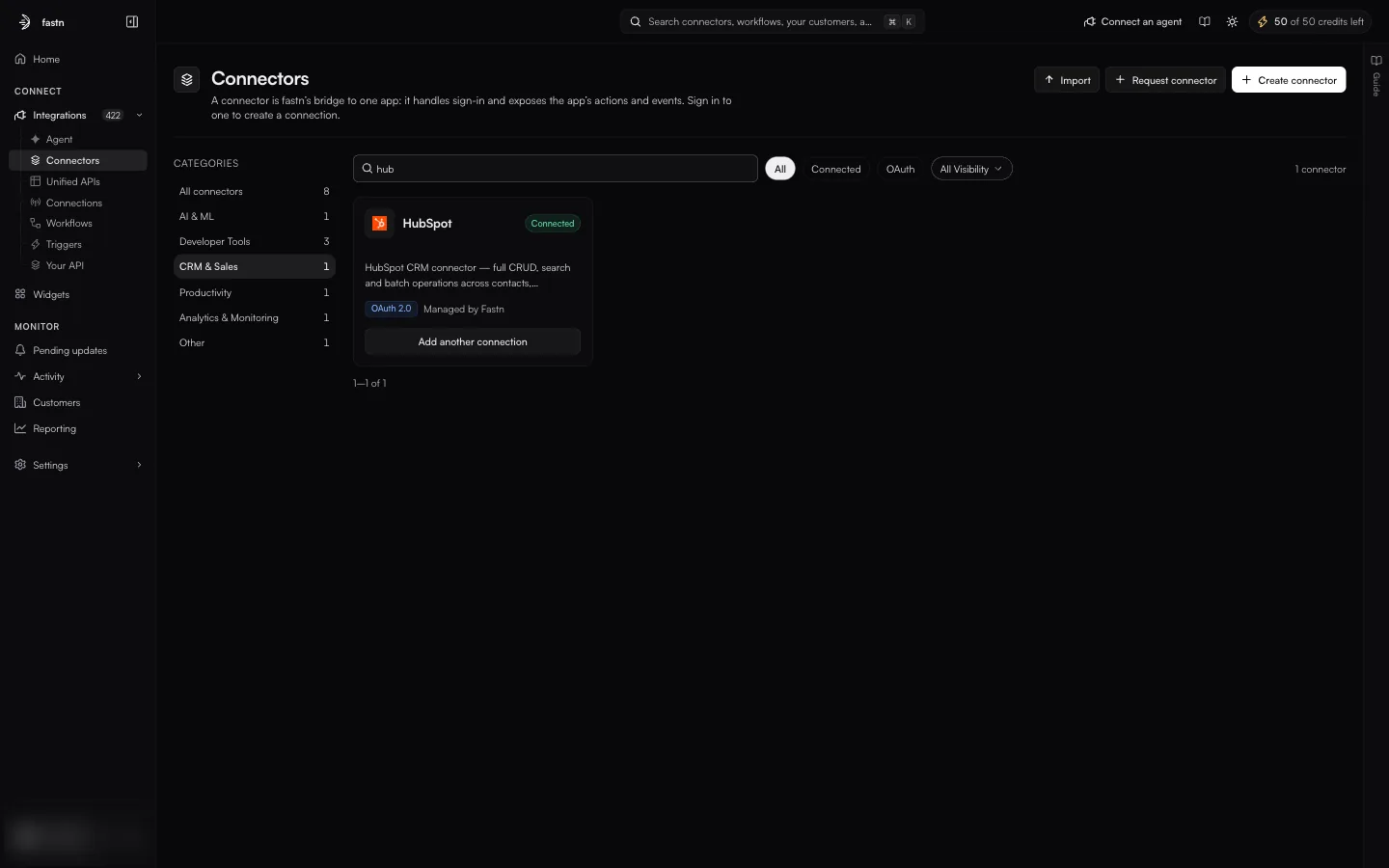
| **Categories** (left column)          | Shows one category, such as *CRM & Sales* or *Communication*. Each category shows how many connectors it holds. **All connectors** clears the category. | `category=` (for example `crm-sales`) |
| **Search connectors**                 | Matches the connector's name and its description. A search for `slack` also finds connectors that mention Slack in their description.                   | `q=`                                  |
| **All / Connected / OAuth**           | **All** shows everything. **Connected** shows connectors with at least one connection. **OAuth** shows connectors that offer an OAuth 2.0 method.       | `view=connected`, `view=oauth`        |
| **All Visibility / Private / Public** | **Private** shows connectors only your workspace can see. **Public** shows connectors from the shared catalogue.                                        | `visibility=`                         |

Filters combine. When you search, the category counts change to show how many matches each category holds.

<figure><img src="https://1255842839-files.gitbook.io/~/files/v0/b/gitbook-x-prod.appspot.com/o/spaces%2F3iSr2Tx8FvvuoLPncziH%2Fuploads%2Fgit-blob-14947e024ebf1a5cd84e9cbe1320ea219c805633%2Fconnectors-search-category.webp?alt=media" alt="The Connectors page with the CRM and Sales category selected and the search box set to hub: the category list now shows All connectors 8 and CRM and Sales 1, and one card, HubSpot, is listed"><figcaption><p>A search combined with a category. The counts on the left now count matches only.</p></figcaption></figure>

Because the filters are kept in the URL, you can bookmark or share a filtered view. The page number is not kept, so a shared link always opens on page one.

If nothing matches, the page shows *No connectors match these filters* and *Try another search or category.*

<figure><img src="https://1255842839-files.gitbook.io/~/files/v0/b/gitbook-x-prod.appspot.com/o/spaces%2F3iSr2Tx8FvvuoLPncziH%2Fuploads%2Fgit-blob-36461aa73c08828ebf346298686d58ee4f4c7b38%2Fconnectors-filter-empty.webp?alt=media" alt="The Connectors page with the visibility filter set to Private and the message No connectors match these filters, Try another search or category"><figcaption><p>The empty state. Here the workspace has no private connectors.</p></figcaption></figure>

{% hint style="info" %}
The **Connected** and **OAuth** views can take several seconds to load the first time you open them, because the page checks each connector's connections and auth methods. The list shows *Loading...* until it is ready.
{% endhint %}

The list is split into pages, with **Previous** and **Next** below it.

### Reading a card

Each card shows:

* the connector's **icon** and **name**;
* a **badge**: `managed` (maintained by fastn), `Custom` (created in your workspace), or `Connected` (at least one connection exists);
* the **description**, cut to a few lines;
* an **OAuth 2.0** chip if the connector offers OAuth;
* who maintains it: *Managed by Fastn*, or *Managed by* your organisation's name for a connector your workspace created;
* a button at the bottom.

The button depends on whether you have connected:

| State         | Button                                     | What it does                                                                                                                                 |
| ------------- | ------------------------------------------ | -------------------------------------------------------------------------------------------------------------------------------------------- |
| Not connected | **Connect**                                | Opens the connect dialog for this connector. See [Connect a system](/build/connectors/connect-a-system.md).                                  |
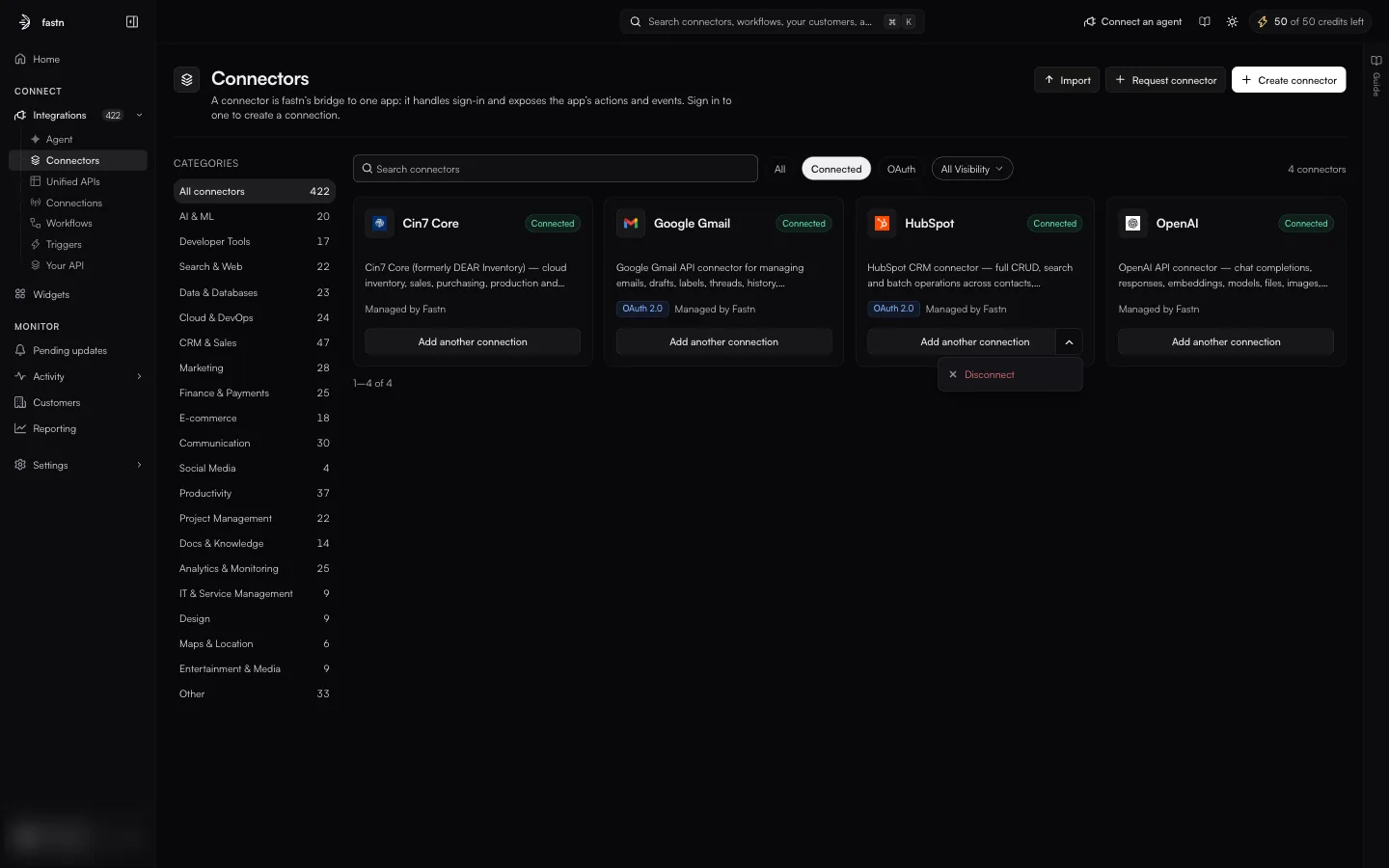
| Connected     | **Add another connection**, plus a chevron | **Add another connection** opens the connect dialog again so you can sign in a second account. The chevron opens a menu with **Disconnect**. |

<figure><img src="https://1255842839-files.gitbook.io/~/files/v0/b/gitbook-x-prod.appspot.com/o/spaces%2F3iSr2Tx8FvvuoLPncziH%2Fuploads%2Fgit-blob-f186bcca29fae141342363e9378a0f7f2eb116bf%2Fconnectors-card-disconnect.webp?alt=media" alt="The HubSpot card in the Connected view with its chevron menu open, showing a single red Disconnect item"><figcaption><p>The chevron next to <strong>Add another connection</strong> holds <strong>Disconnect</strong>.</p></figcaption></figure>

Cards of connectors your workspace owns also have a **⋯** menu with **Select**, **Edit**, **Export** and **Delete**; see [Importing and exporting](/build/connectors/importing-and-exporting.md#export-connectors) and [Editing, publishing and deleting](/build/connectors/editing-and-deleting.md).

Click a card's name to open the [connector's detail page](/build/connectors/inside-a-connector.md).

### The guide panel

The right-hand panel, headed **Connectors** · *Every app fastn can talk to.*, is a short checklist for first-time users:

1. **Search for your app by name**
2. **Press Connect and sign in**: *It says Connected when it works. This signs in your own account, not your customers'.*
3. **Not there? Ask us for it**: opens Request connector.
4. **Change or remove it later under Connections**: **Take me there** opens the [Connections](/build/connections.md) page.

Each step has a **Show me** button that outlines the matching control on the page, and a checkbox to mark it done. The panel also defines the words on the page (**Connector**, **Action**). Close it with the arrow at its top right. Once closed, it collapses to a **Guide** tab on the right edge of the page.


---

# Agent Instructions
This documentation is published with GitBook. GitBook is the documentation platform designed so that both humans and AI agents can read, navigate, and reason over technical content effectively. Learn more at gitbook.com.

## Querying This Documentation
If you need additional information that is not directly available in this page, you can query the documentation by asking a question.

Perform an HTTP GET request on the following URL with the `ask` and `goal` query parameters:

```
GET https://docs.fastn.ai/build/connectors/the-catalogue.md?ask=<question>&goal=<user_goal>
```

`ask` is the immediate question: it should be specific, self-contained, and written in natural language.
`goal` is what the user is ultimately trying to achieve, the reason they need the answer. Sharing it helps GitBook give you a better, more relevant answer. A goal is most helpful when it describes the outcome the user wants rather than restating the question. For example, with `ask=how do I create an API token`, a goal like `automate deployments from our CI pipeline` lets GitBook tailor the answer to that use case.

The response will contain a direct answer to the question and relevant excerpts and sources from the documentation.

Use this mechanism when the answer is not explicitly present in the current page, you need clarification or additional context, or you want to retrieve related documentation sections.