# Connect UCL for task Assignment in Jira
{% hint style="info" %}
UCL's Playground is the overview of how your AI agent will work with integrated Connectors and Actions (Tools) through UCL.
{% endhint %}
### Connect your Jira account to UCL
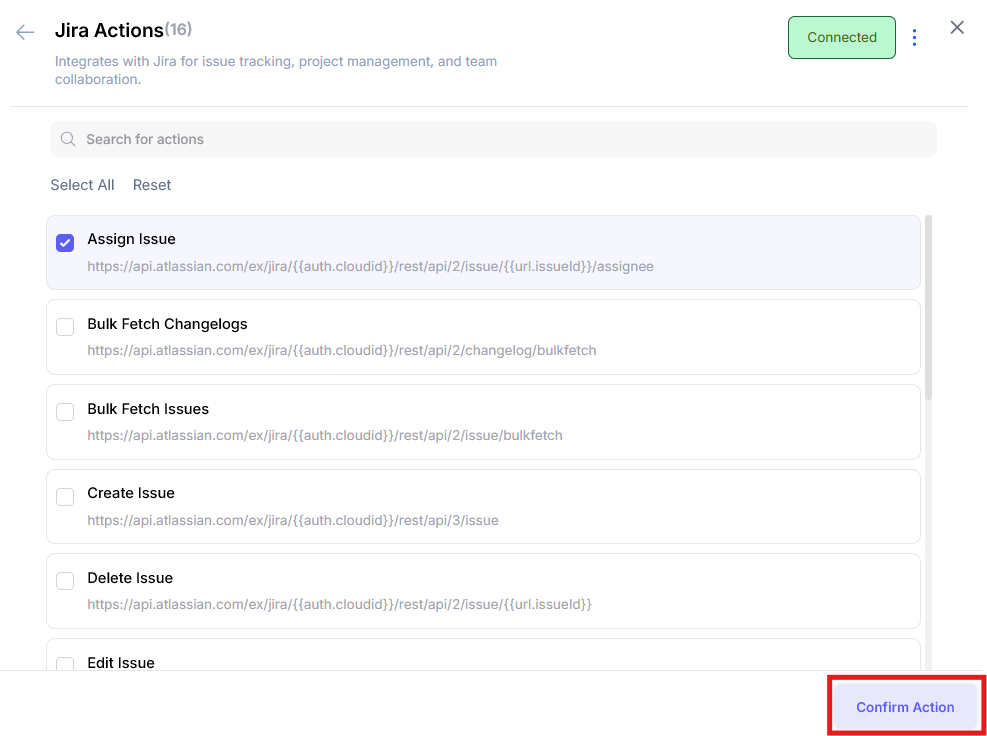
For this use case, we need to connect the Jira App with the Assign Issue Action.
> You can select any app by checking the top-right box on the app and click on **Select Tools** to modify your action selection and then finalize this setup by clicking the **Confirm Action** button in the right-bottom.
* You need to authenticate your Jira account, after which the Jira App will appear as **Connected**.
* From Select Tools, you can enable the **Assign Issue** Action.
> ⚠️ You may need to be a Jira project admin or have the right permissions to link your account successfully.
You will now see Jira along with other selected apps in your dashboard.
### **Use UCL’s Playground to Perform Actions**
You can use the **Playground** (from the three-dot menu, top-right) in your dashboard to test all your connected apps.
In the AI Assistant, enter the prompt describing the action you want to perform. For example:
> *Assign "Task Name" to "User's Jira ID"*
The AI Assistant will process your request using the appropriate action in the connected app, such as updating a task in Jira.
{% embed url="" %}
Once successful, the task ownership will be updated in your Jira workspace.
> This setup allows you to automate and streamline task management in Jira using natural language, making workflows faster and more efficient.
---
# Agent Instructions: Querying This Documentation
If you need additional information that is not directly available in this page, you can query the documentation dynamically by asking a question.
Perform an HTTP GET request on the current page URL with the `ask` query parameter:
```
GET https://docs.fastn.ai/ai-agent-integrations-ucl/getting-started/how-ucl-works-in-real-scenarios/connect-ucl-for-task-assignment-in-jira.md?ask=
```
The question should be specific, self-contained, and written in natural language.
The response will contain a direct answer to the question and relevant excerpts and sources from the documentation.
Use this mechanism when the answer is not explicitly present in the current page, you need clarification or additional context, or you want to retrieve related documentation sections.